How to save a web page as a searchable PDF in Chrome
Open Eofent Capture on the page, keep PDF ticked and press Capture Full Page. It scrolls the page for you and writes a PDF whose text stays selectable and searchable. Your captures stay on your computer.
6 STEPS · CHROME AND EDGE
1Open Eofent Capture on the page
Press its icon in the toolbar. The popup opens on Shots.
2Keep PDF ticked
Under Export formats, PDF is ticked already. Tick more formats if you want them too.
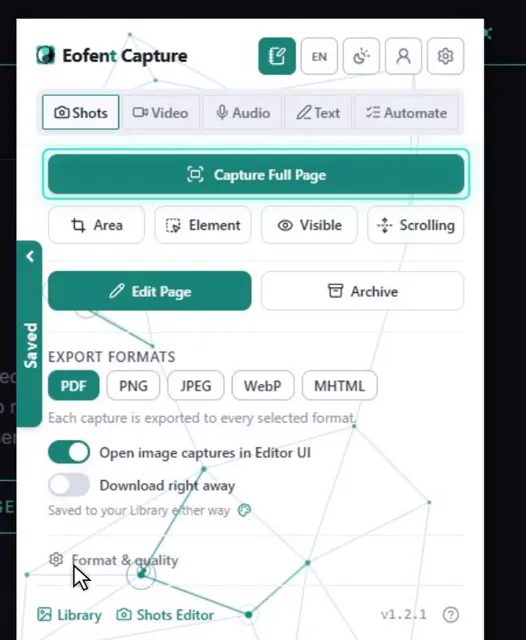
3Press Capture Full Page
The page scrolls by itself and is joined into one document. A sticky header shows once instead of on every screen.
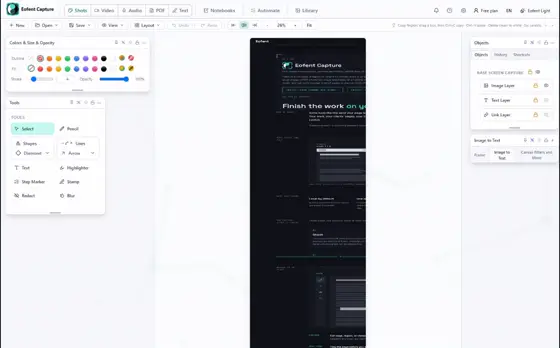
4Open Save, then Export image / PDF
The whole page opens in the Shots editor, where you can mark it up first if you like.
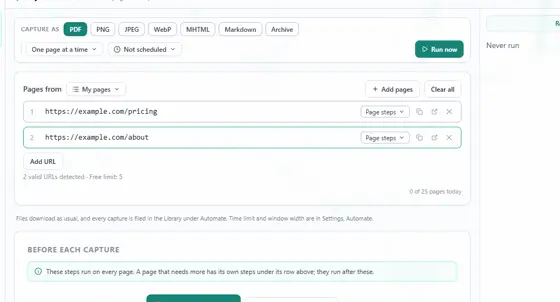
5Check that PDF is ticked
One capture writes each format you tick.
GOOD TO KNOW
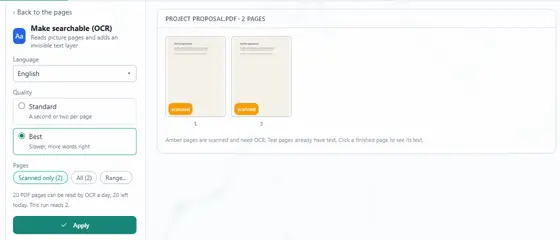
Searchable PDFs: 10 a day on a free account, 5 signed out, unlimited on Premium. Past the limit the PDF still exports, as a plain picture without the text and links.
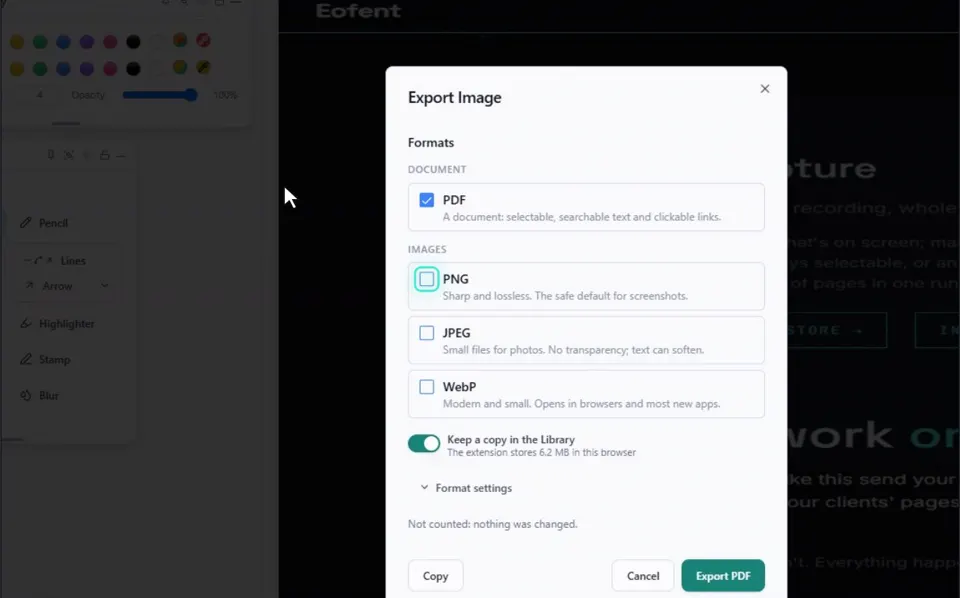
6Press Export
The PDF lands in your Downloads folder.
GOOD TO KNOW
Settings, Shots has the PDF options: one long page or paper pages, A4, Letter or Legal, margins, portrait or landscape, and page numbers.
Install Eofent Capture
Eofent Capture is free to start; the free plan has daily allowances. SEE PLANS →