Eofent Capture guides
Short, step by step guides for the things people do most in Chrome and Edge. Each one is under a minute.
Screenshots
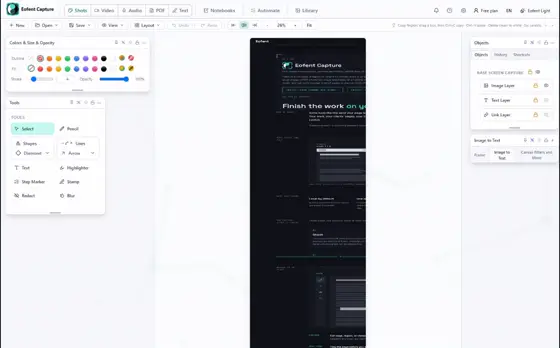 Full Page Screenshot in Chrome, One ClickScreenshot an entire webpage in Chrome in one click. Eofent Capture scrolls the page, joins it into one picture and saves it as PNG or PDF.
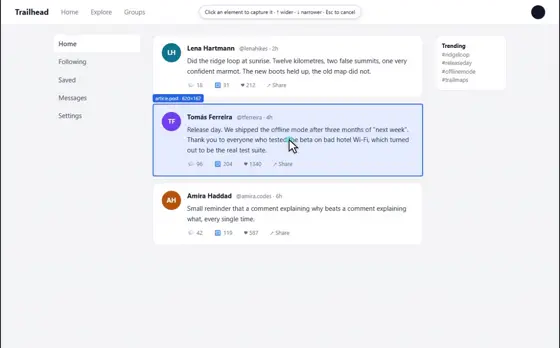 Screenshot One Post, Card or Table in ChromeScreenshot exactly one thing on a page with clean edges and no dragging. Open Eofent Capture, press Element, point at it and click.
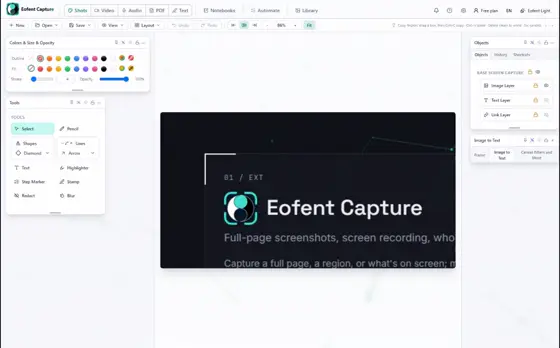 Screenshot Part of a Page in ChromeScreenshot just the part of a page you want in Chrome. Open Eofent Capture, press Area, drag a box and save it as PNG, JPEG, WebP or PDF.
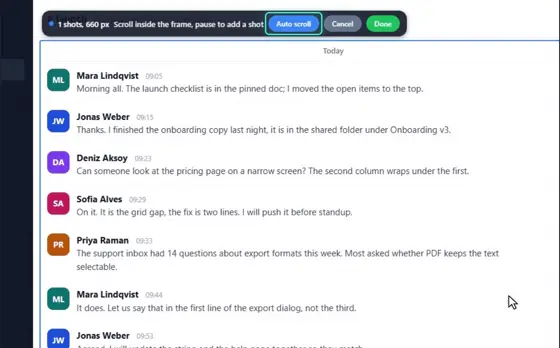 Screenshot a Whole Chat or Scrolling List in ChromeScreenshot a chat, feed or side panel that scrolls inside the page. Eofent Capture's Scrolling mode joins the whole list into one picture.
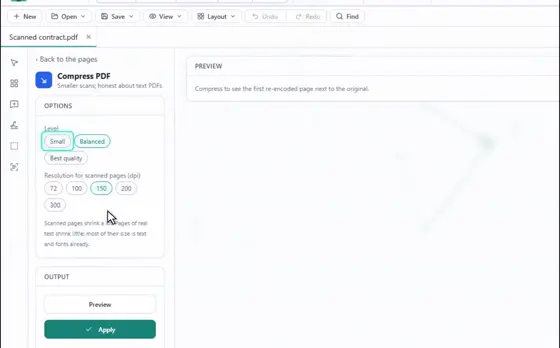 Compress a PDF in Chrome, Right in the BrowserReduce a PDF's file size in Chrome. Open it in Eofent Capture's PDF editor, pick a level and compare the size before and after.
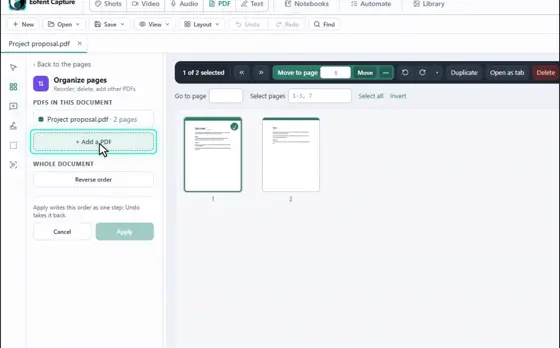 Merge PDFs in Chrome, Right in the BrowserMerge two or more PDFs into one file in Chrome. Open the first in Eofent Capture's PDF editor, add the others, order the pages and export.
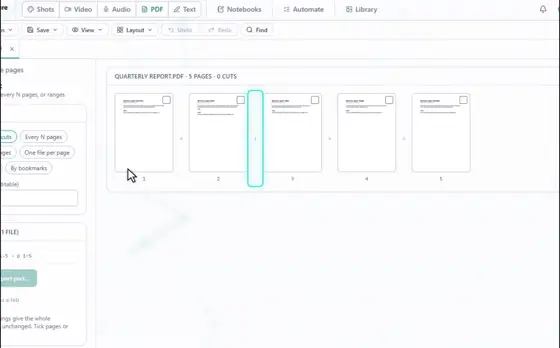 Split a PDF in Chrome, Right in the BrowserSplit a PDF into separate files in Chrome. Open it in Eofent Capture's PDF editor, click between the pages and export the parts.
Recording
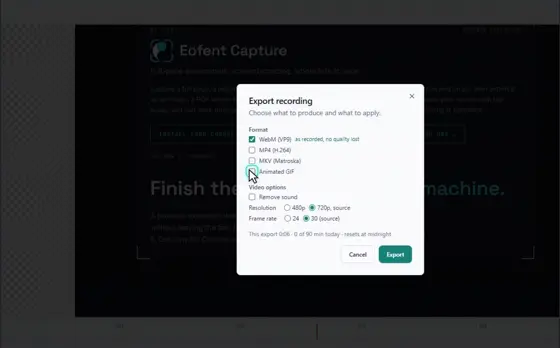
Page editing
Eofent Capture is free to start; the free plan has daily allowances. SEE PLANS →