How to screenshot many websites at once in Chrome
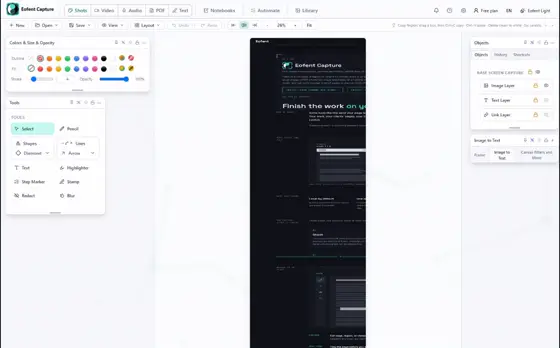
Automate in Eofent Capture takes a list of pages and captures them one after another, so you don't have to open each one. Your captures stay on your computer.
6 STEPS · CHROME AND EDGE
1Open Automate
Open Eofent Capture and choose Automate in the popup.
2Add your pages
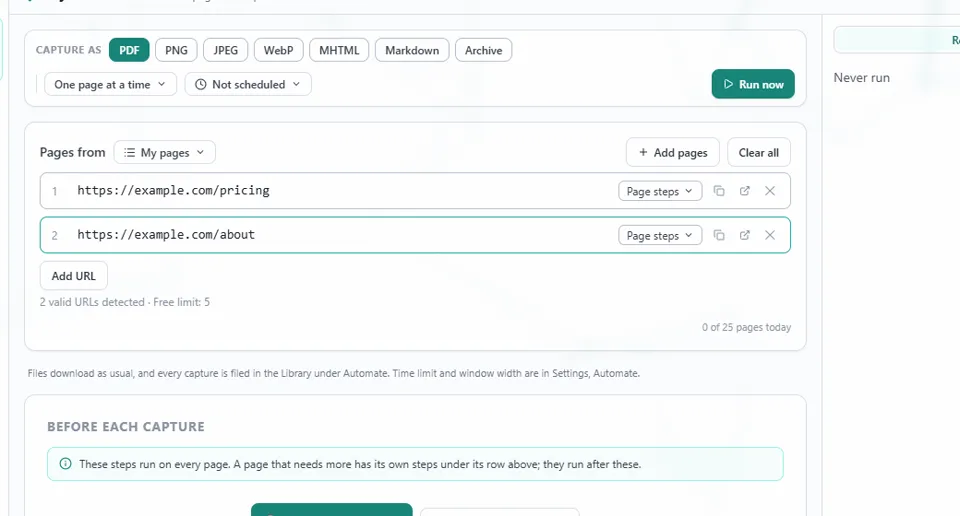
Press Add URL and type an address, or use Add pages to paste addresses one per line, or fill the list from your open tabs or a tab group.
GOOD TO KNOW
On a free account an automation takes 5 pages.
3Pick the formats
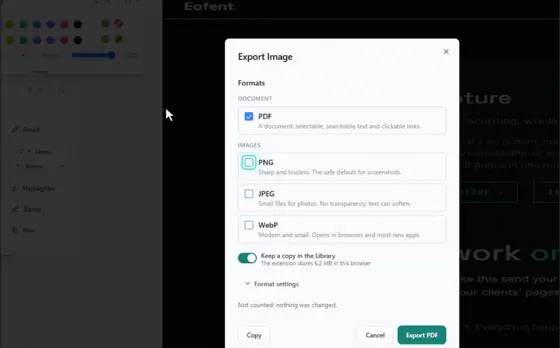
Under Capture as, tick PDF, PNG, JPEG, WebP, MHTML, Markdown or Archive. Every page is captured once and downloaded in each format you pick.
4Add steps if a page needs them
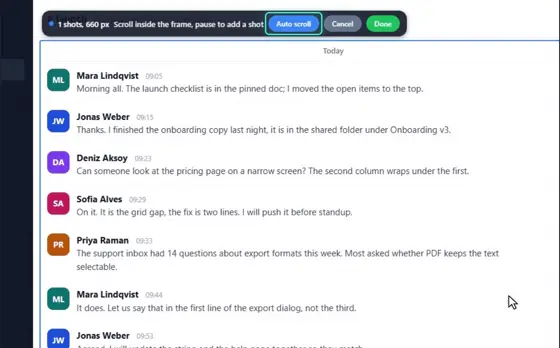
Before each capture is optional. Dismiss a banner, click, type, wait or scroll on every page, or record the steps on a sample page.
5Press Run now
The pages run one at a time, and the toolbar badge counts.
6Find your files
Files download as usual, and every capture is filed in the Library under Automate.
GOOD TO KNOW
To run a list on a schedule, Not scheduled opens the options. Scheduled captures are a Premium feature.
Install Eofent Capture
Eofent Capture is free to start; the free plan has daily allowances. SEE PLANS →