How to add page numbers to a PDF in Chrome
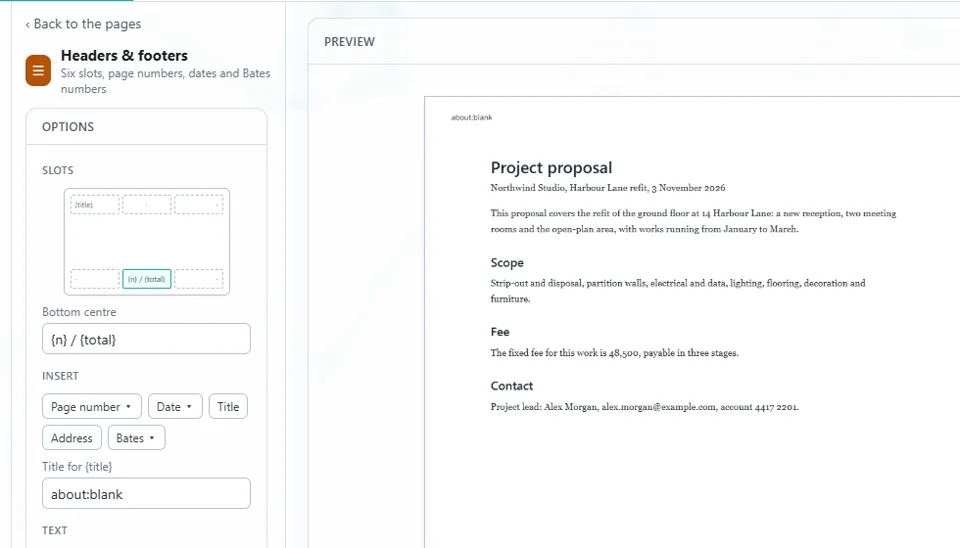
Open the PDF in the PDF editor of Eofent Capture and choose Headers & footers. Page numbers are already set in the bottom centre, so you can apply them straight away or change how they look.
7 STEPS · CHROME AND EDGE
1Open the PDF
Open the PDF tab, press Open a PDF and pick the file.
2Choose Headers & footers
You will find it in All tools. The panel has six slots, three along the top of the page and three along the bottom.
3Pick a slot
Click where the number should go. The preview shows the page as it will look.
4Pick the style
Under Insert, Page number offers three styles: 1, 1 / 2, or Page 1 of 2.

5Set the first number and the pages
First page number sets where counting starts. Under Pages, choose All or a Range.
GOOD TO KNOW
You can also change the font, the size and the margins. Shrink the page so nothing is covered makes room for the numbers.
6Press Apply
The numbers are added as a step you can undo.
7Open Save, then Export
Press Export PDF, and the numbered file lands in your Downloads folder.
Install Eofent Capture
Eofent Capture is free to start; the free plan has daily allowances. SEE PLANS →