How to screenshot a whole ChatGPT, Claude or Gemini conversation
A long AI chat won't fit in one screenshot, and most full page tools stop early because the conversation scrolls inside its own panel, not with the page. Scrolling capture in Eofent Capture is made for panels like that. Your captures stay on your computer.
8 STEPS · CHROME AND EDGE
1Load the whole chat
These sites load older messages as you scroll up. Scroll to the top of the conversation once, until the first message is on screen, then scroll back down.
2Press Scrolling
Open Eofent Capture and press Scrolling in the popup.
GOOD TO KNOW
Full Page captures the window here, not the chat, because the conversation scrolls inside its own panel.
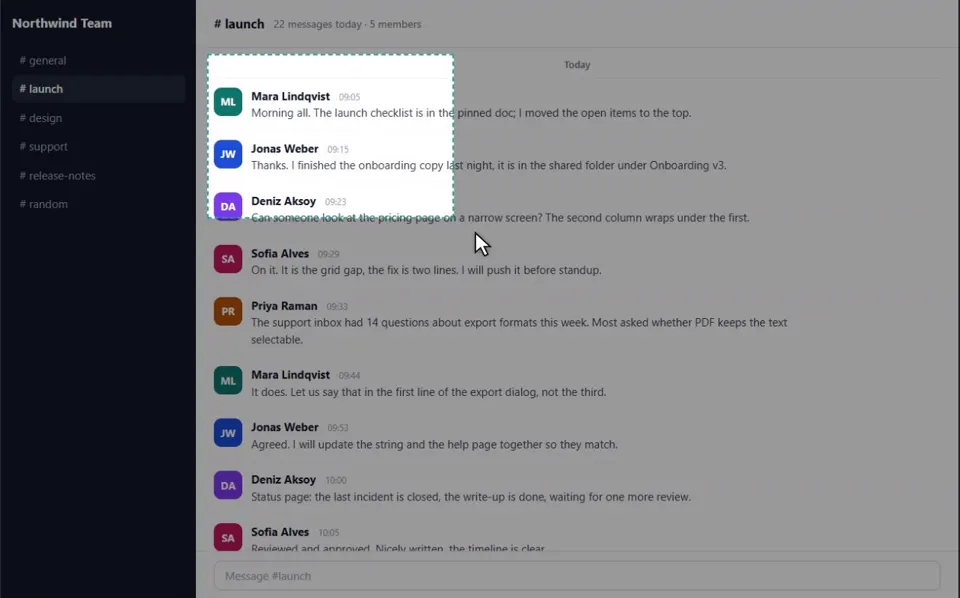
3Draw a frame around the conversation
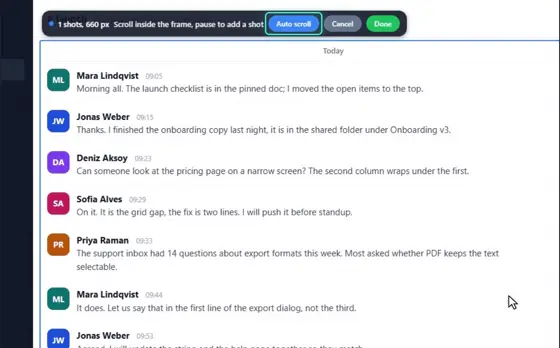
Make it as wide as the messages and leave the side bar and the input box out. For code blocks, draw it as wide as the widest one.
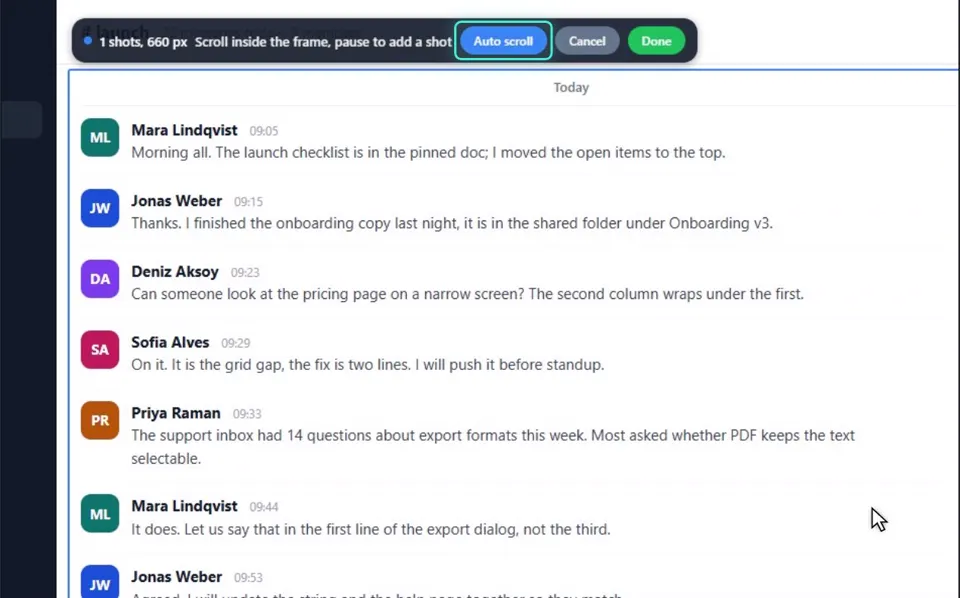
4Press Start, then Auto scroll
It scrolls the panel for you and joins each stop into one picture. Press Done to stop early.
GOOD TO KNOW
If a message is repeated or missing, run it again. Chat sites redraw as you scroll, so you can also scroll by hand a little slower, then press Done.
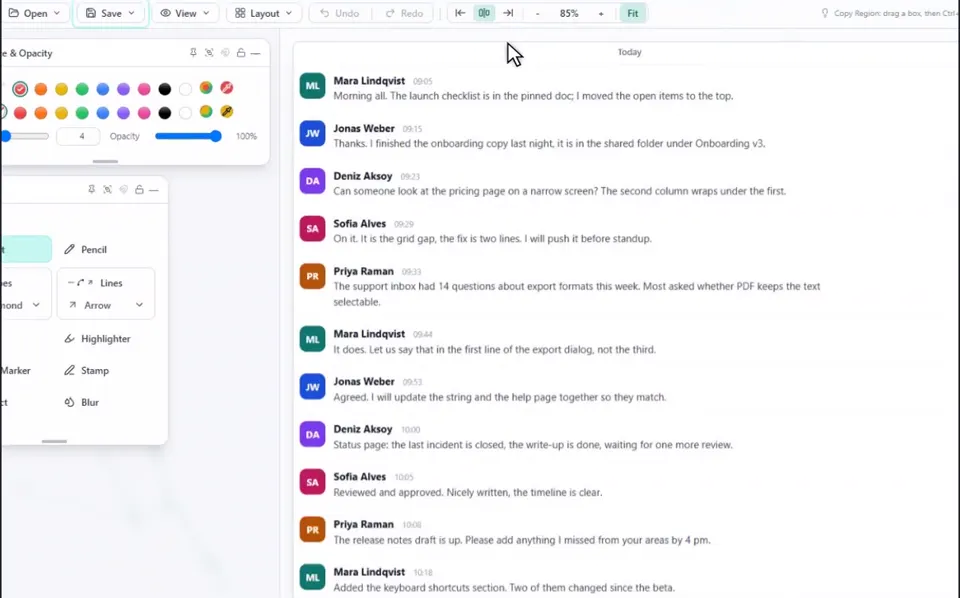
5Check it in the Shots editor
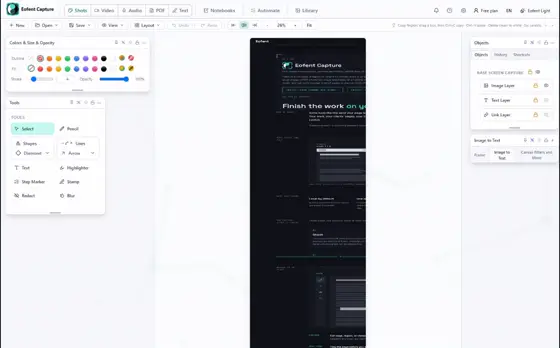
Every message should be there, in order, as one picture. To cover a name or a key before you share it, use Blur or Redact.
6Open Save, then Export image / PDF
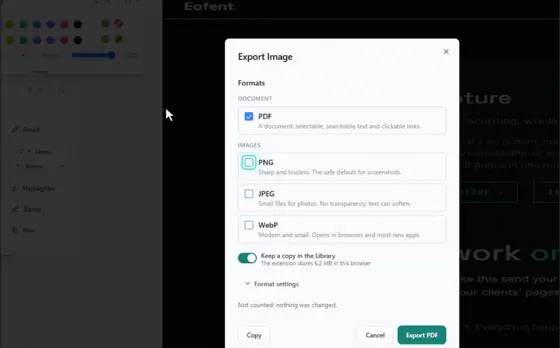
Tick PNG for an image, or PDF for a file whose text you can search and select, then press Export.
7Or keep a page that opens offline
Load the whole chat, then tick MHTML in the popup's formats before you capture. Or press Archive, or right-click the page and choose Eofent Capture, then Archive this page, which keeps a picture, a PDF and the MHTML together in the Library. An MHTML file opens in Chrome or Edge with no connection.
GOOD TO KNOW
It keeps only what the page had loaded, so messages that were never loaded aren't in the file.
8Or clip the text to a notebook
Select the answer you want, right-click and choose Clip to the notebook. It lands in the notebook with the chat's title, address and date, so the source comes with the text.
Install Eofent Capture
Eofent Capture is free to start; the free plan has daily allowances. SEE PLANS →