How to copy text from an image in Chrome
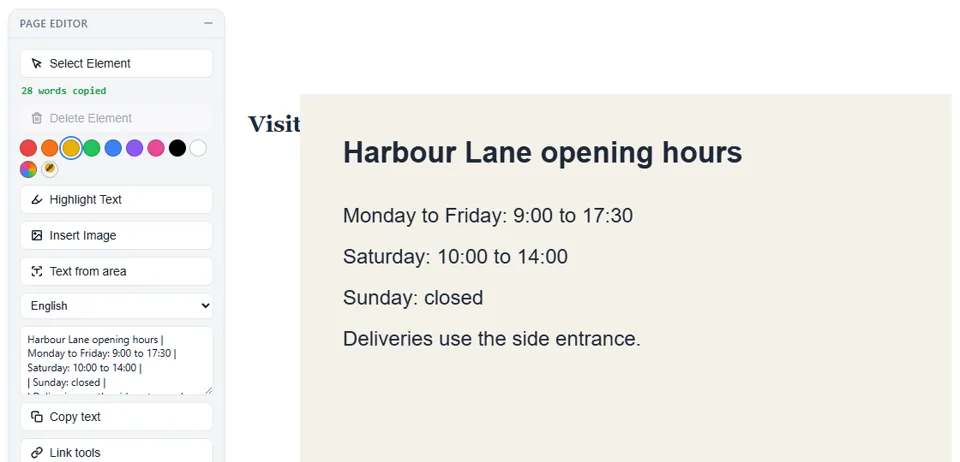
Open the picture in Chrome, press Edit Page in Eofent Capture and use Text from area. Drag a box over the words and they land on your clipboard, ready to paste. Your captures stay on your computer.
7 STEPS · CHROME AND EDGE
1Open the picture in a tab
Any page with the picture on it works, or open an image in Chrome by itself.
2Press Edit Page
Open Eofent Capture and press Edit Page. The Page Editor toolbar appears on the page.
3Pick the language and press Text from area
Choose the language of the text in the list under the button. The first time you read a language it downloads once, a few MB, and is then kept for offline use.
GOOD TO KNOW
Image to Text reads: 10 a day on a free account, 5 signed out.
4Drag a box over the words
Adjust it with its handles, then press Read text.
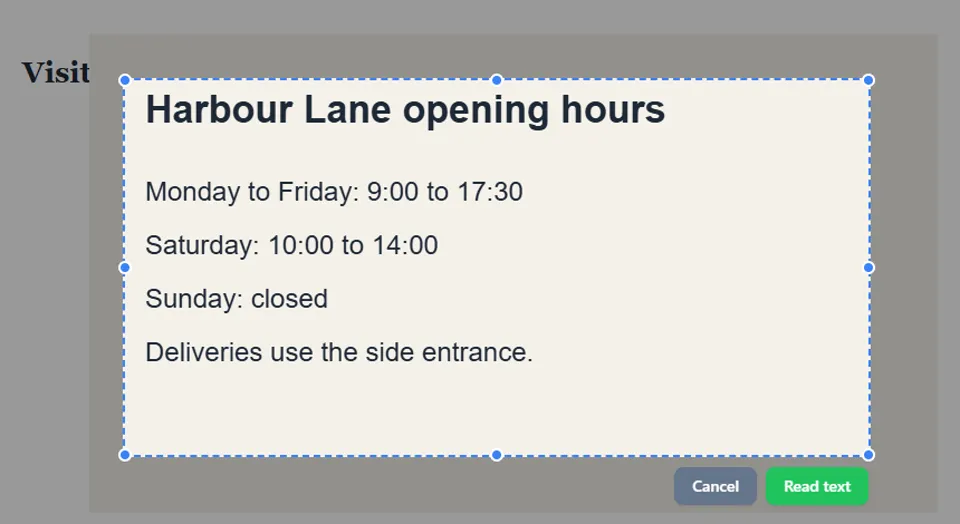
5Paste the text
The words are copied for you, and the toolbar shows how many. The text also appears in the box under the button, where you can fix it, and Copy text copies it again.
GOOD TO KNOW
Check numbers and codes before you rely on them. Recognition is good but not perfect, and stray marks can appear.
6For a picture saved on your computer
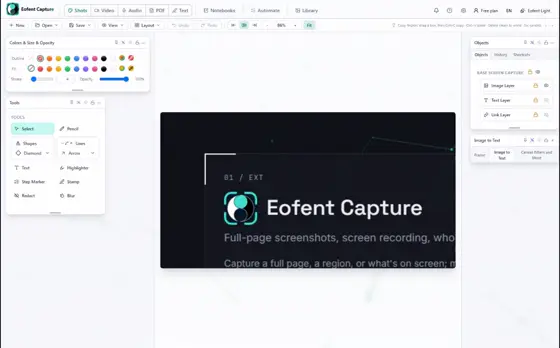
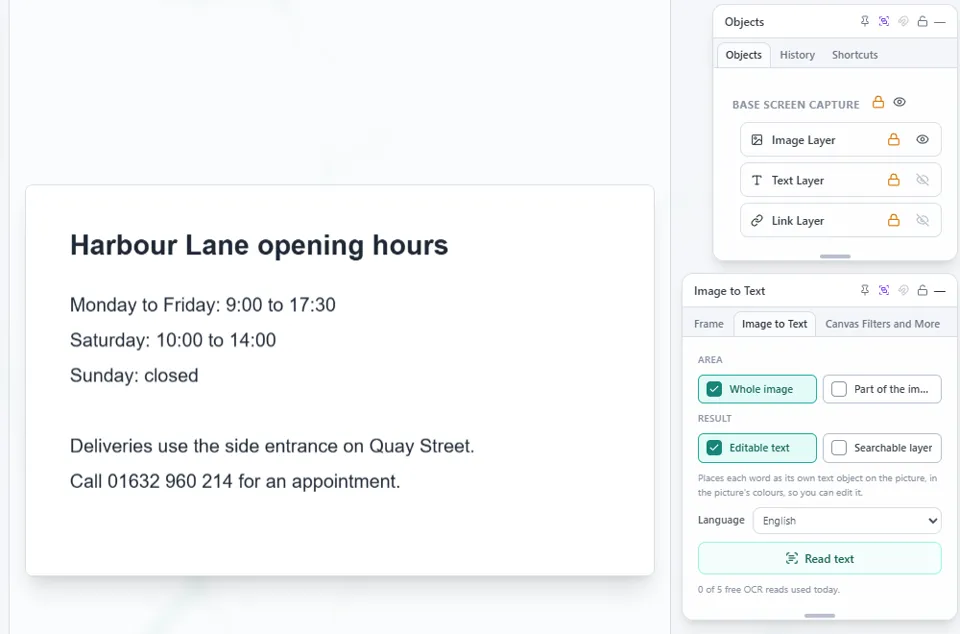
Open the Shots editor, then use Open, Import image file. In the Image to Text panel choose Whole image, or Part of the image and drag a box.
7Choose the result and press Read text
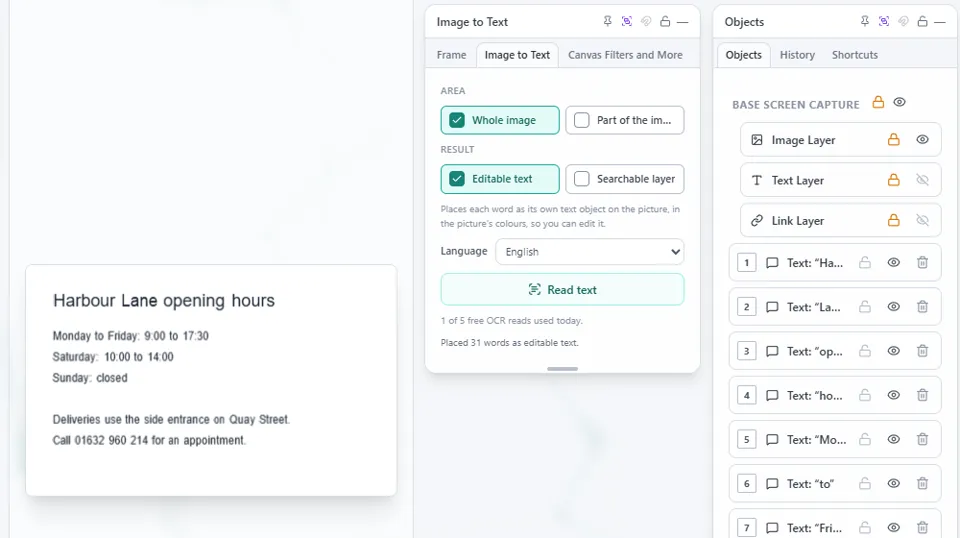
Editable text places each word on the picture as its own text object, so you can edit it. Searchable layer adds invisible words over the picture.
GOOD TO KNOW
For a block of text to copy, use the Searchable layer and export a PDF. Its text can be selected and copied in one go.
Install Eofent Capture
Eofent Capture is free to start; the free plan has daily allowances. SEE PLANS →