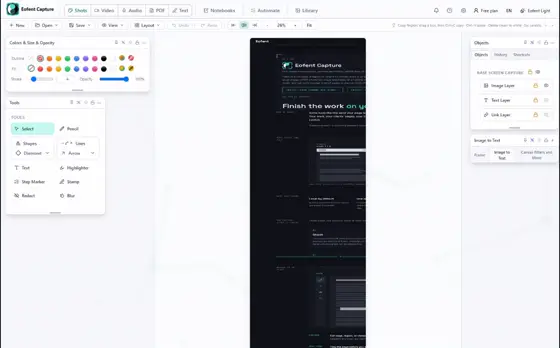
How to record your screen to GIF in Chrome
Open the Video tab in Eofent Capture, record, and the take opens in the Video editor. Trim it if you like, then export it as an animated GIF with no watermark.
7 ÉTAPES · CHROME ET EDGE
CE GUIDE EST EN ANGLAIS POUR L'INSTANT
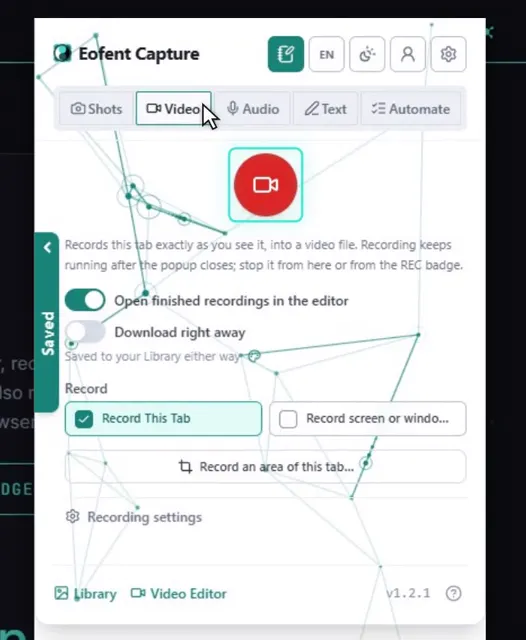
1Open the Video tab
Open Eofent Capture and choose Video in the popup.
2Press Record This Tab
It starts at once, with no picker. Choose Record screen or window to pick something else in the browser's own picker.
BON À SAVOIR
For sound, choose tab or screen sound, microphone only, both, or none. You can also drag an area of the tab to record.
3Do your thing, then press Stop
The toolbar badge says REC while it records. Open the popup to pause, resume or stop.
BON À SAVOIR
On a free account a take saves automatically at 10 minutes, so it is never lost.
4Trim the take in the Video editor
The take opens in the Video editor. Move the playhead and press S to split, then select a part and press Delete to take it out.
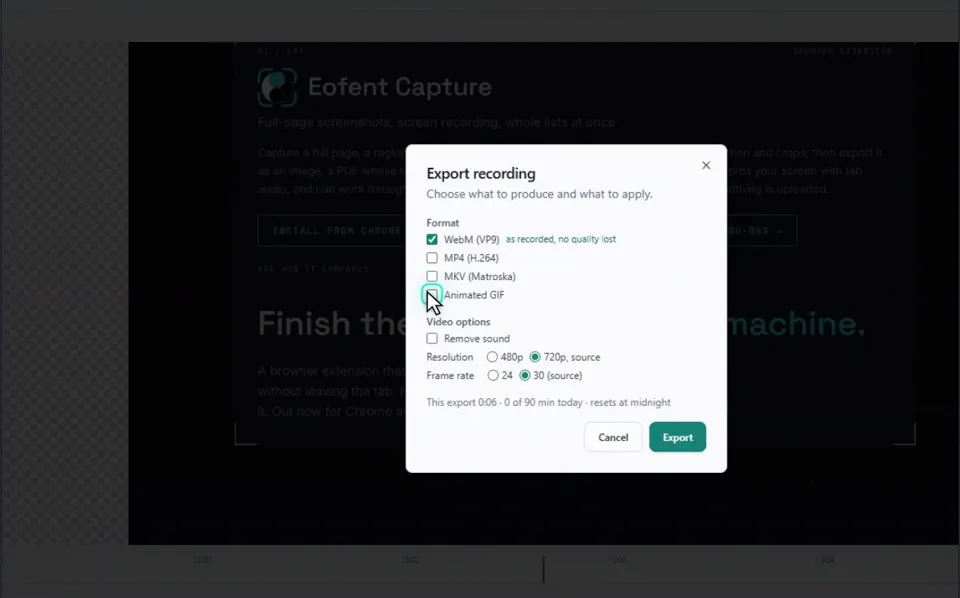
5Open Save, then Export
The export panel opens over the editor.
6Tick Animated GIF
Standard is 12 fps up to 720 px wide, and High is 15 fps up to 1280 px. A GIF plays up to 30 seconds.
BON À SAVOIR
For longer or detailed clips, MP4 is smaller and sharper, and the same panel exports it.
7Press Export
The GIF lands in your Downloads folder.
Installer Eofent Capture
Eofent Capture est gratuit pour commencer ; l'offre gratuite a des limites quotidiennes. VOIR LES OFFRES →