How to split a PDF in Chrome
Open the PDF in the PDF editor of Eofent Capture, choose Split and click between the pages where you want a cut. You can export the parts as one ZIP or as separate PDFs.
6 ステップ · CHROME と EDGE
このガイドは現在英語のみです
1Open the PDF
Open the PDF tab, press Open a PDF and pick the file.
2Choose Split
You will find it under Combine in the list on the left.
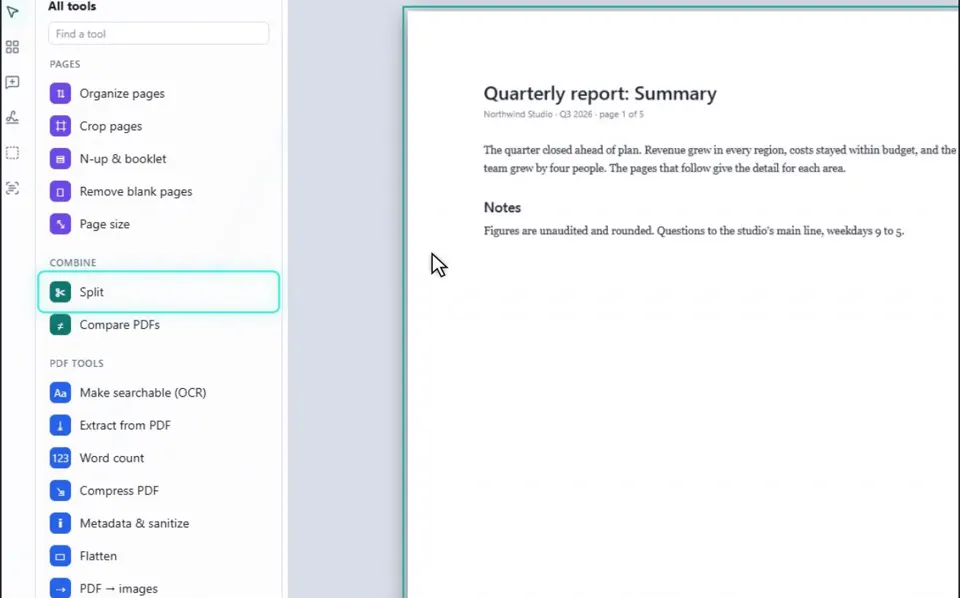
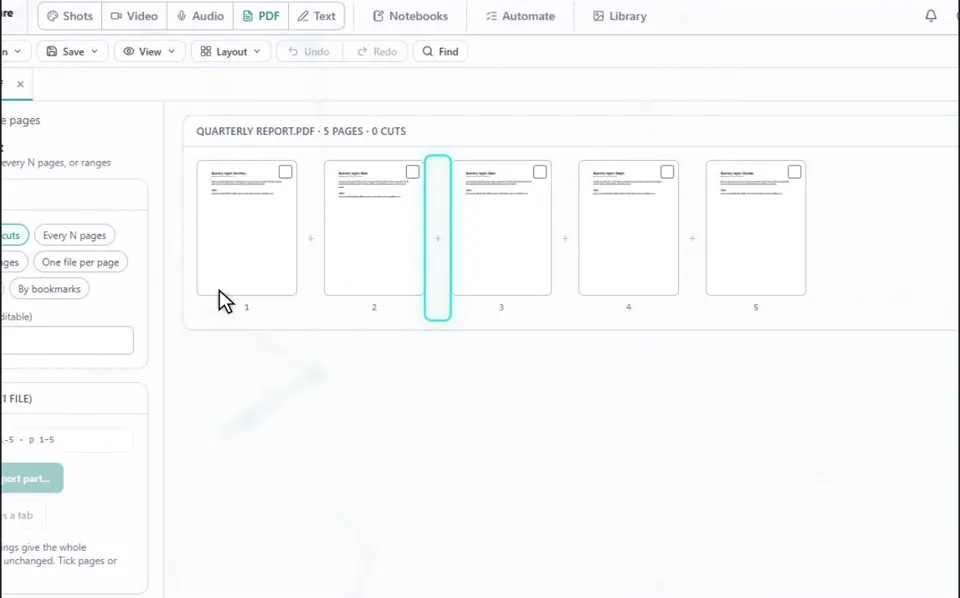
3Click where you want a cut
Click the marker between two pages. Add as many cuts as you like.
補足
The same panel offers Every N pages, Page ranges, One file per page, By size and By bookmarks.
4Press Export
The button counts the parts for you, for example Export 2 parts.
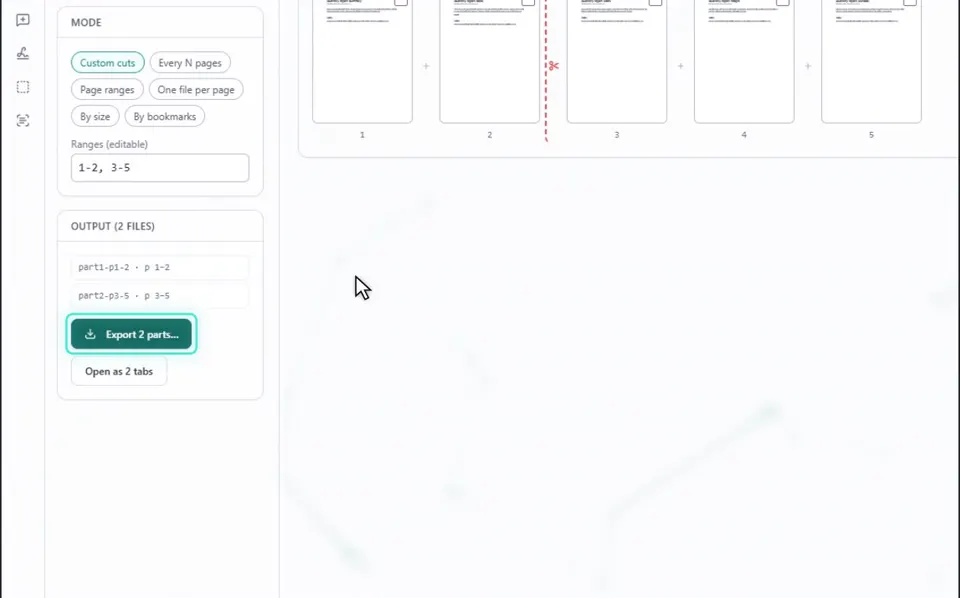
5Choose one ZIP or separate files
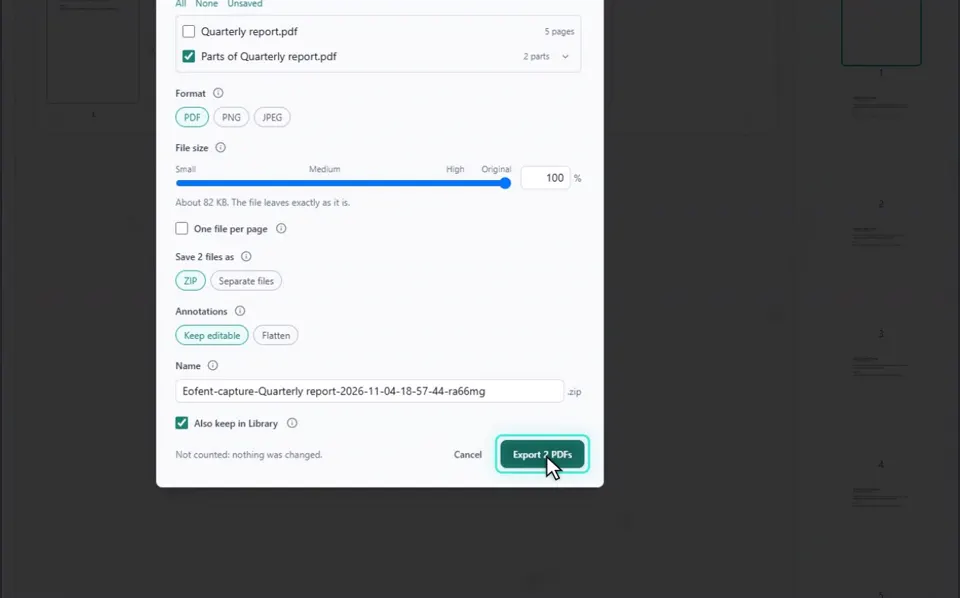
One ZIP is the default. Choose Separate files to get one PDF for each part.
補足
The parts can also open as new tabs in the editor instead of downloading.
6Press Export PDFs
The parts land in your Downloads folder.
Eofent Capture をインストール
Eofent Capture は無料で始められます。無料プランには1日の利用枠があります。 プランを見る →