How to take a full page screenshot in Chrome
Install Eofent Capture, open it and press Full page. It scrolls the page for you and joins every screen into one picture, and your captures stay on your computer.
7 ステップ · CHROME と EDGE
このガイドは現在英語のみです
1Open Eofent Capture
Press its icon in the toolbar. The popup opens on Shots.
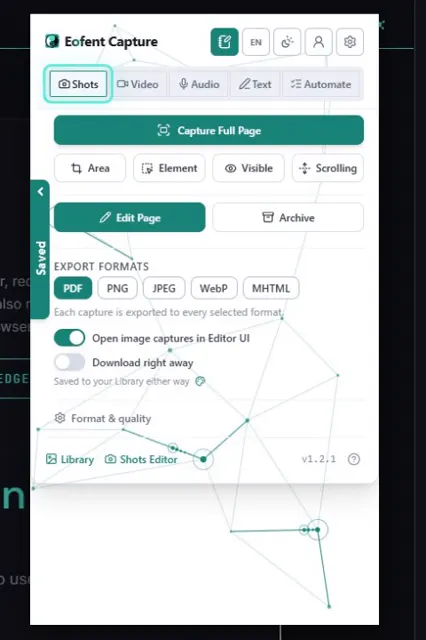
2Press Full page
That is the only choice you need to make for this kind of shot.
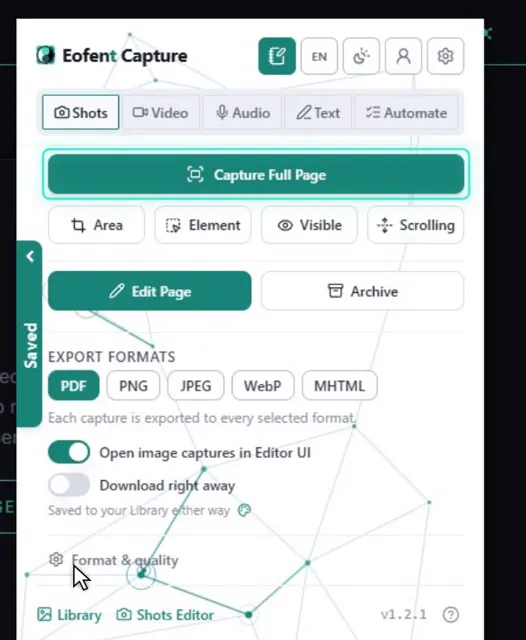
3Let the page scroll by itself
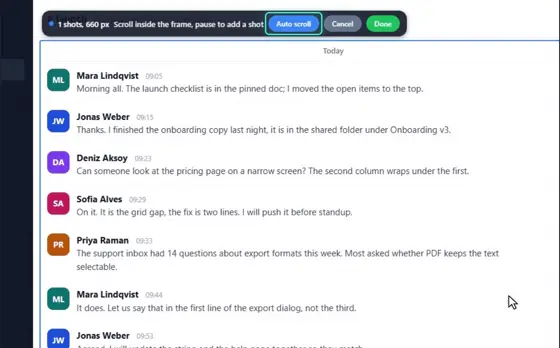
It scrolls the page and joins it into one picture. A sticky header shows once instead of on every screen, and scrollbars are hidden.
補足
A very long page is captured in parts and joined: one PDF, or numbered picture parts. Settings, Shots has full width for wide pages, and loading lazy content first.
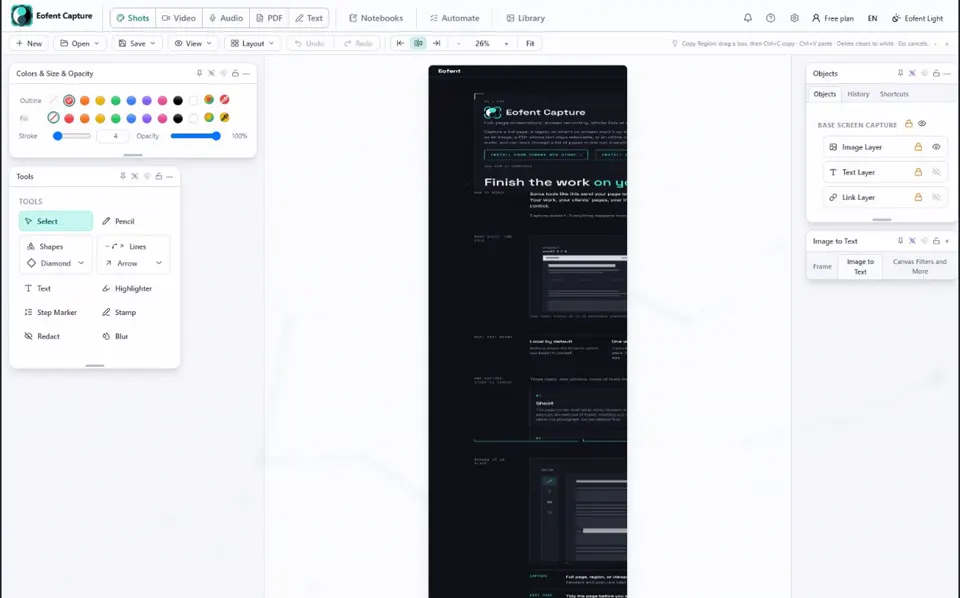
4Mark it up in the Shots editor
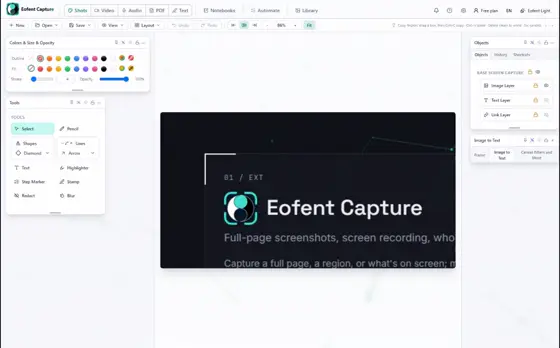
The whole page opens in the Shots editor. Add arrows, text, blur or a crop if you like.
5Open Save, then Export image / PDF
The export panel opens over the editor.
6Tick PNG, PDF or both
One capture writes each format you tick.
補足
The PDF keeps the page's text selectable and searchable. Searchable PDFs: 10 a day on a free account, 5 signed out, unlimited on Premium. Past the limit the PDF still exports, as a plain picture without the text and links.
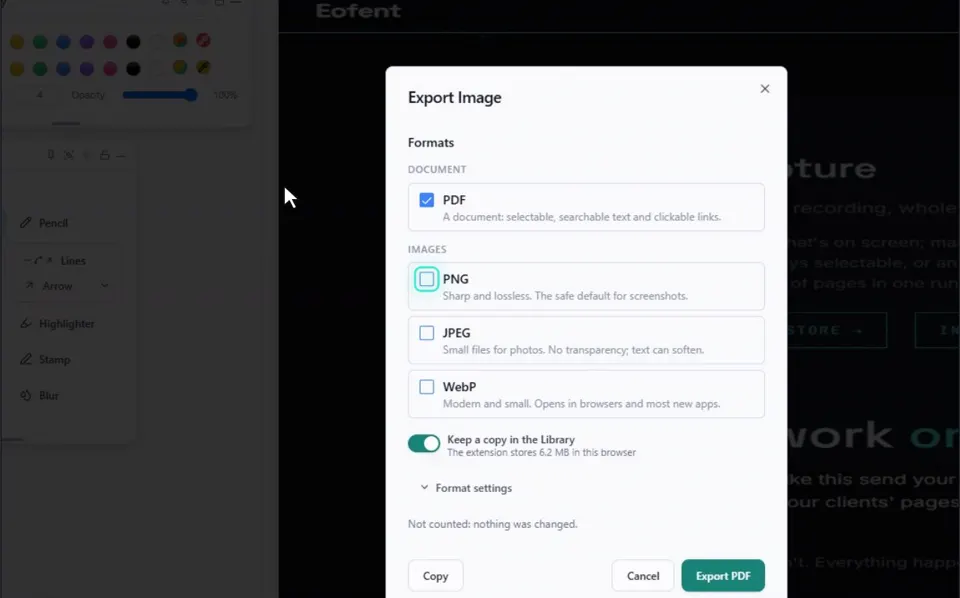
7Press Export
The files land in your Downloads folder.
補足
Every capture is also kept in the Library. Downloads are copies.
Eofent Capture をインストール
Eofent Capture は無料で始められます。無料プランには1日の利用枠があります。 プランを見る →