How to edit a webpage before you screenshot it
Open Eofent Capture and press Edit Page, and a small toolbar appears on the page itself. Remove what you don't want, highlight what matters, then capture as usual. Your captures stay on your computer.
8 SCHRITTE · CHROME UND EDGE
DIESE ANLEITUNG GIBT ES VORERST AUF ENGLISCH
1Open Eofent Capture
Press its icon in the toolbar. The popup opens on Shots.
2Press Edit Page
The Page Editor toolbar appears on the page.
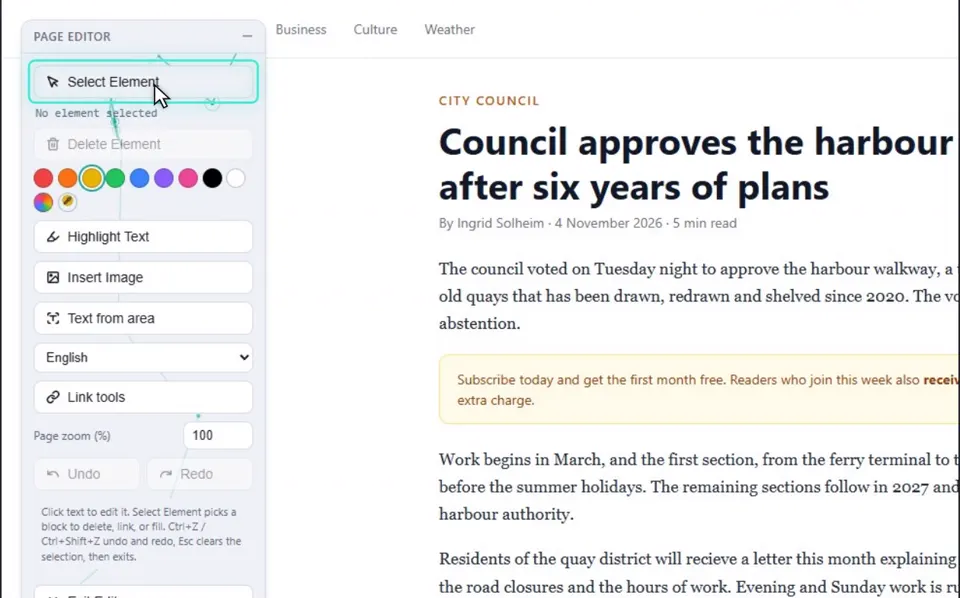
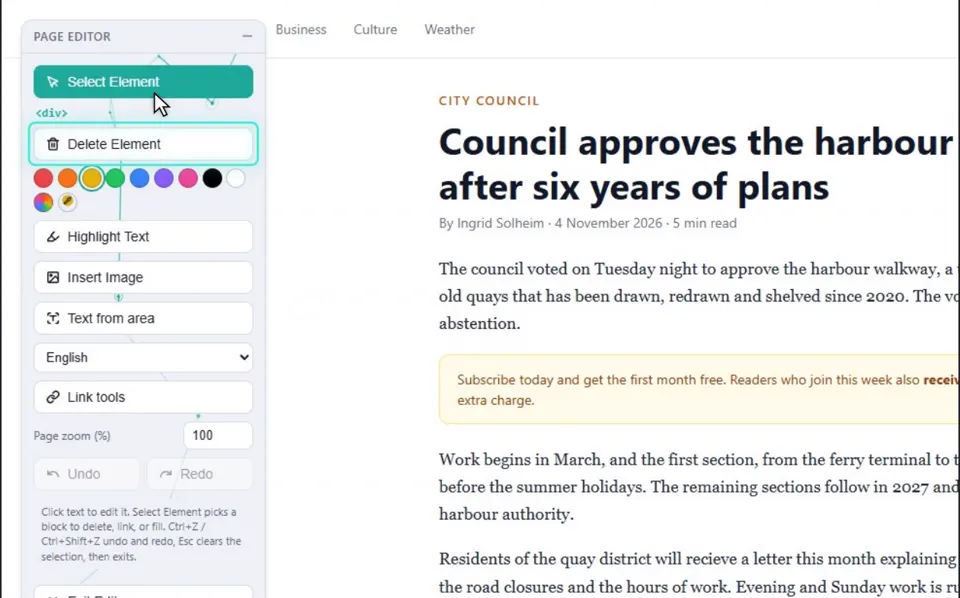
3Remove what you don't want
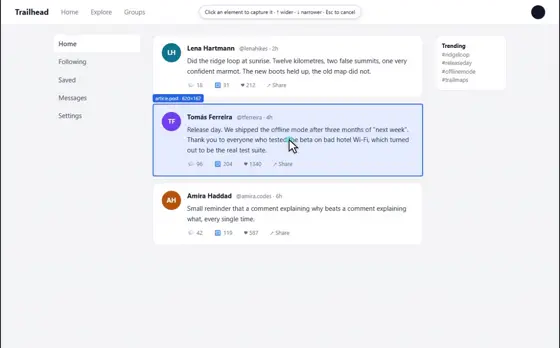
Press Select Element, then click something like a cookie banner or an ad.
4Press Delete
It is gone from the page. Undo brings it back.
5Highlight a sentence
Drag over a sentence and press Highlight Text. Other colours are in the swatches.
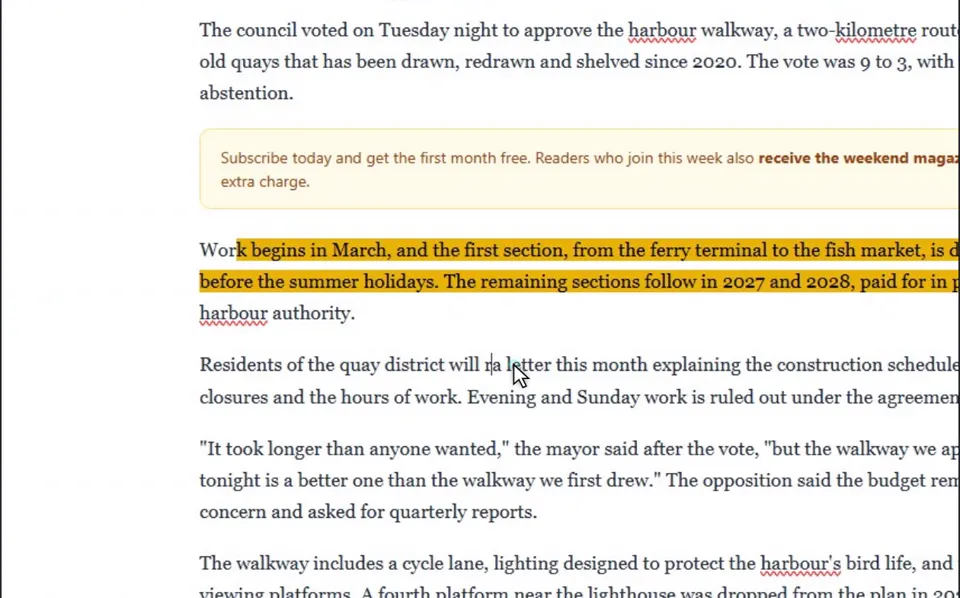
6Fix a word
Double-click a word and type.
7Capture the page
Open the popup again and press Capture Full Page, or use Area, Element or Visible.
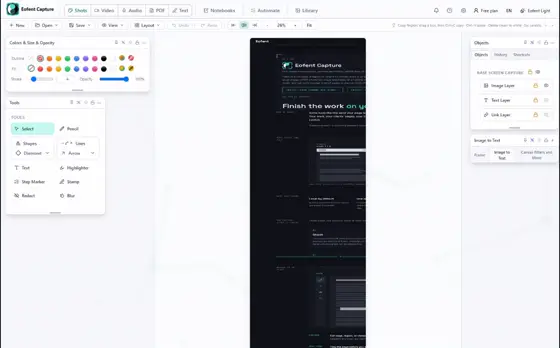
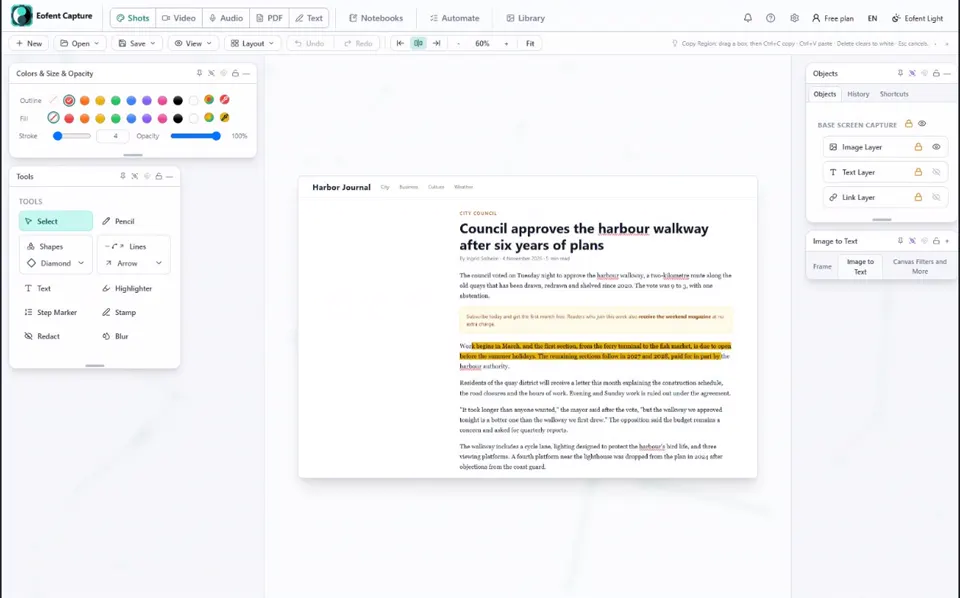
8Export from the Shots editor
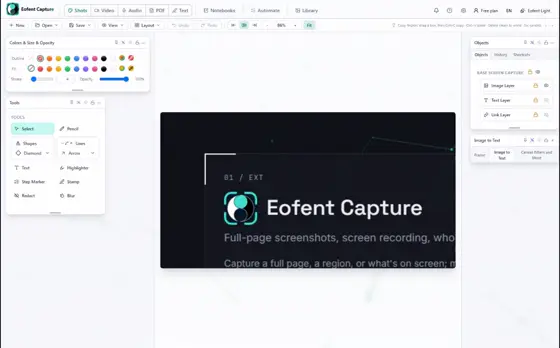
The edited page opens in the Shots editor, toolbar not included. Export it as PNG or PDF.
GUT ZU WISSEN
Every edit can be undone and redone. The toolbar can also insert an image, edit links and zoom the page.
Eofent Capture installieren
Eofent Capture lässt sich kostenlos starten; der kostenlose Plan hat tägliche Kontingente. PLÄNE ANSEHEN →