How to screenshot a chat or list that scrolls inside the page
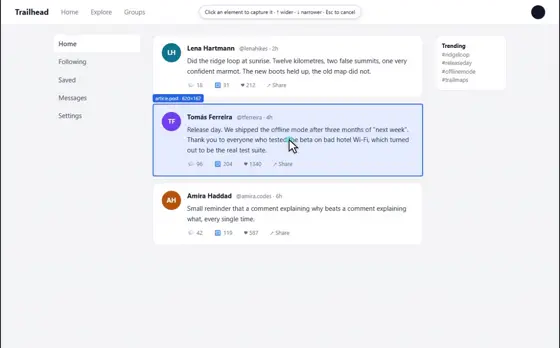
Some pages do not scroll, the list inside them does: a chat, a feed, a side panel, a table in a frame. A full page screenshot only sees what is on screen, so use Scrolling, which joins the whole list into one picture. Your captures stay on your computer.
10단계 · CHROME 및 EDGE
이 가이드는 현재 영어로만 제공됩니다
1Open Eofent Capture
Press its icon in the toolbar. The popup opens on Shots.
2Press Scrolling
It is the mode for parts of a page that scroll on their own.
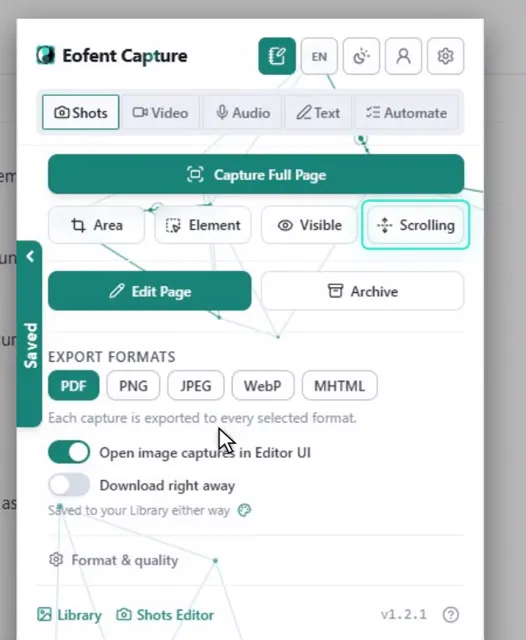
3Drag a frame over the part that scrolls
The frame is a region of the screen, so it works on anything that scrolls under it.
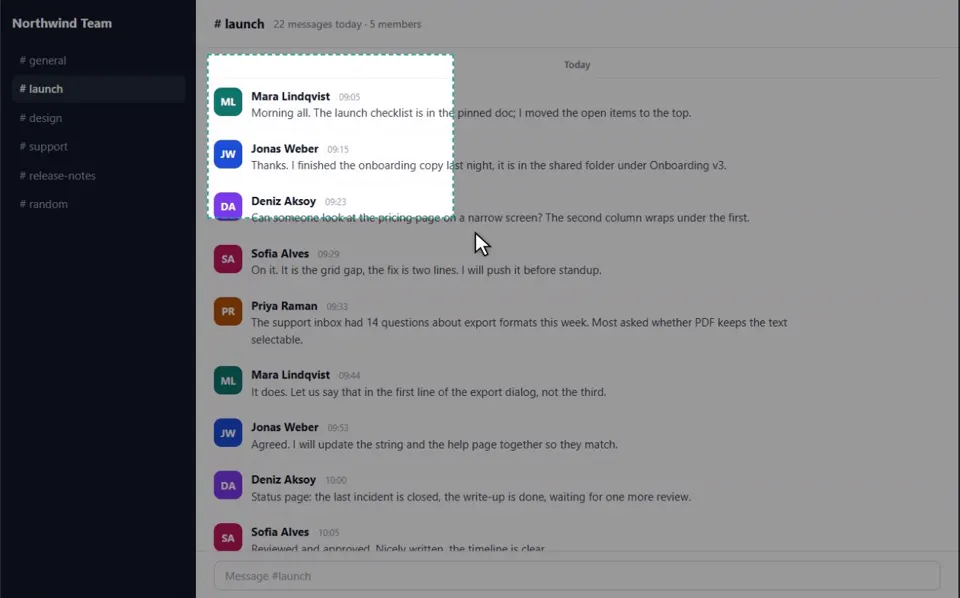
4Press Start
A small bar appears above the frame.
5Press Auto scroll
It walks the list for you. Or scroll yourself and pause for each shot.
참고
Each pause adds only what is new, so scrolling back up adds nothing twice.
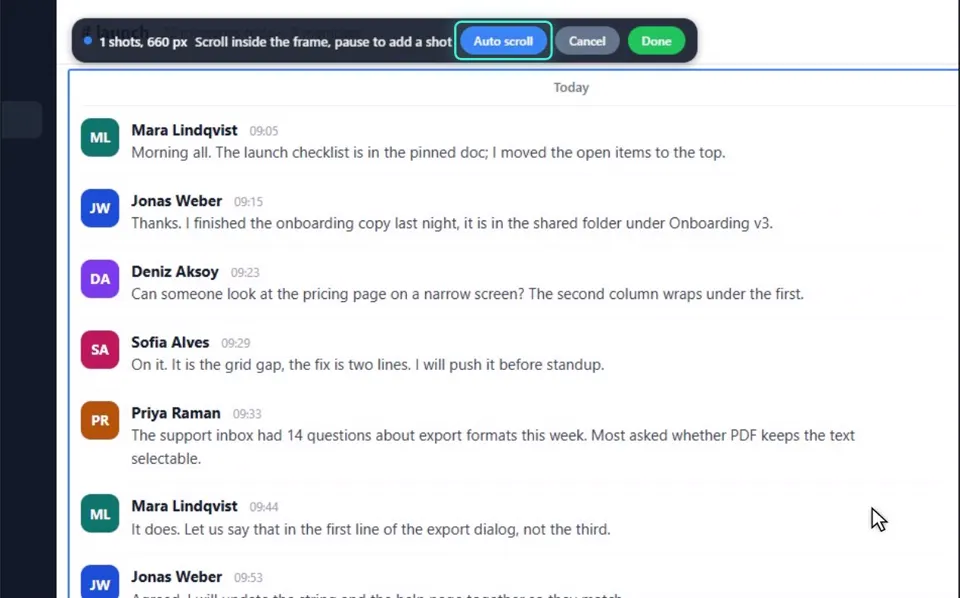
6Wait for the bottom of the list
Every stop is one shot. Finish with Done, or let Auto scroll go to the end.
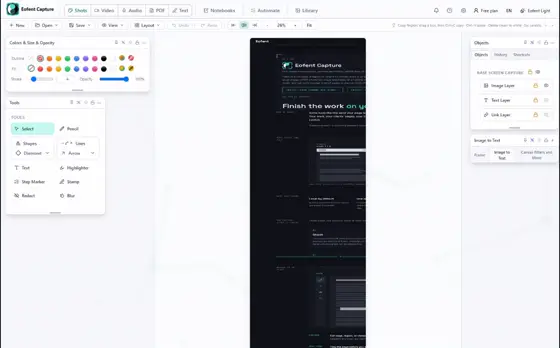
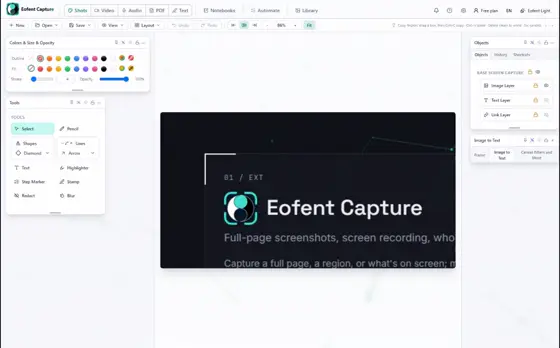
7Check it in the Shots editor
The whole list opens in the Shots editor, with its header once.
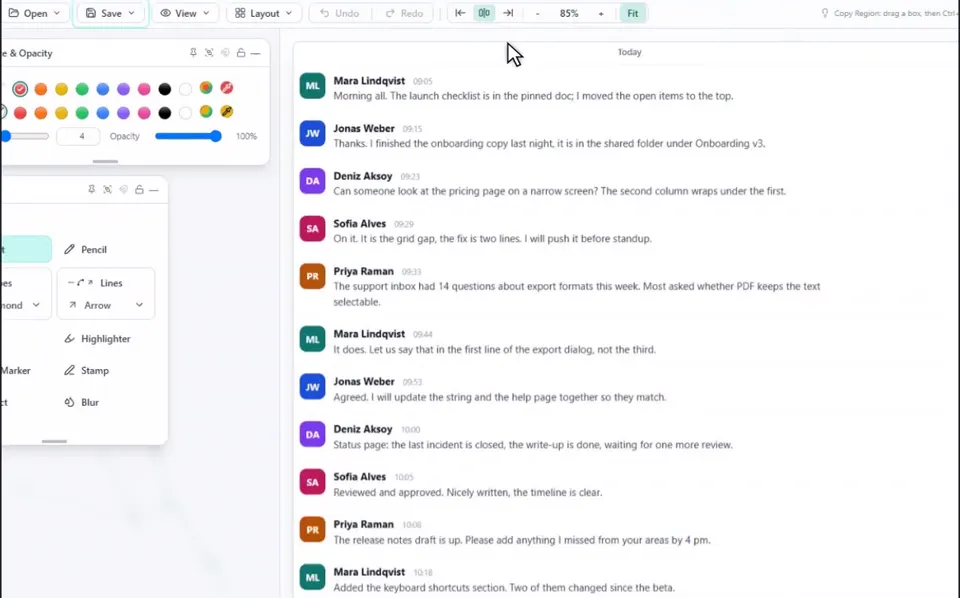
8Open Save, then Export image / PDF
The export panel opens over the editor.
9Tick the formats you want
PDF is ticked already and keeps the text searchable. Tick PNG if you want a picture too.
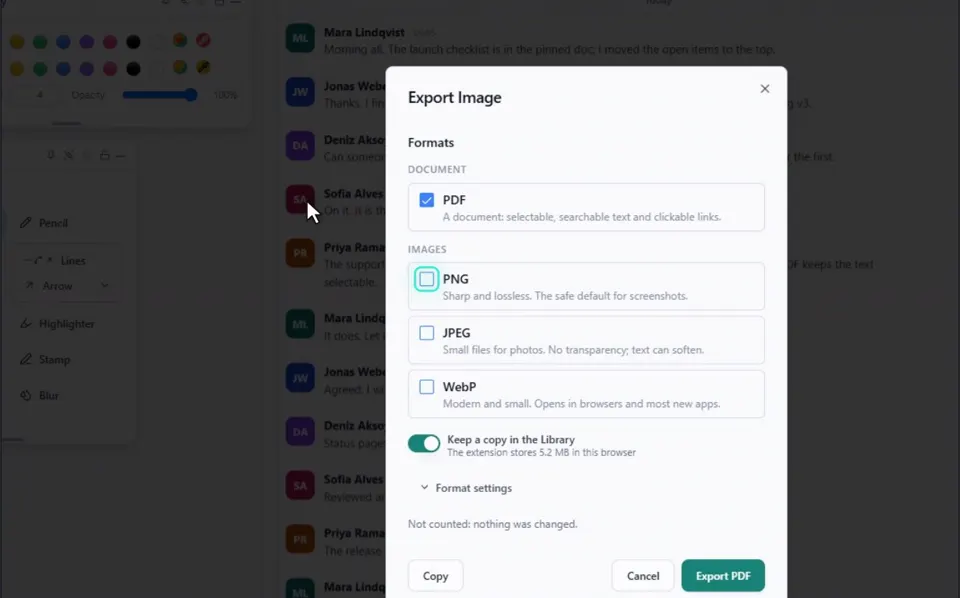
10Press Export
The files land in your Downloads folder.
Eofent Capture 설치
Eofent Capture는 무료로 시작할 수 있습니다. 무료 플랜에는 일일 사용량이 있습니다. 요금제 보기 →