How to merge PDFs in Chrome
Open the first PDF in the PDF editor of Eofent Capture, choose Organize pages and add the other files. There is no other app to install, and the file opens right in your browser tab.
7 PASSAGGI · CHROME ED EDGE
PER ORA QUESTA GUIDA È IN INGLESE
1Open the first PDF
Open the PDF tab and press Open a PDF, then pick the first file.
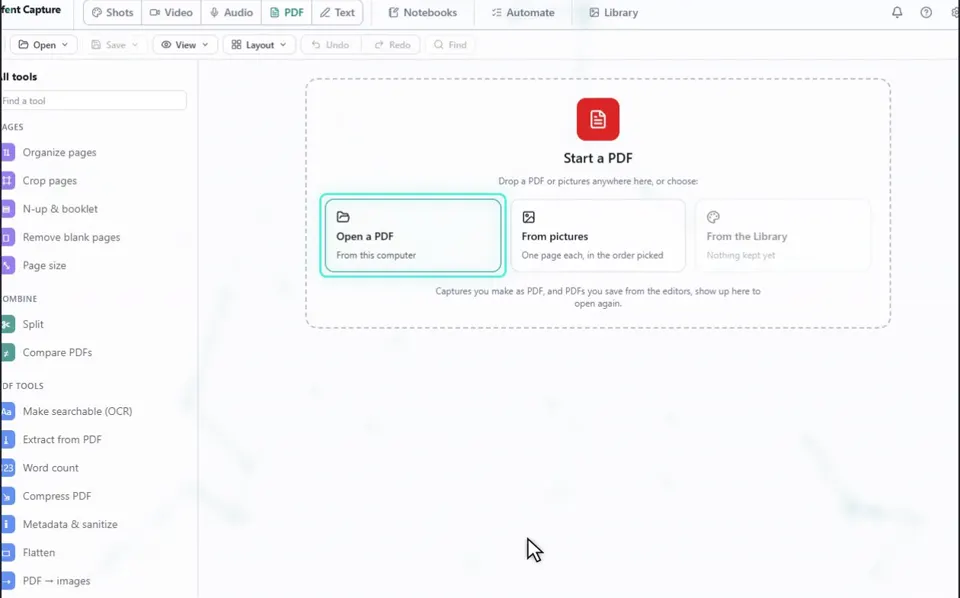
2Choose Organize pages
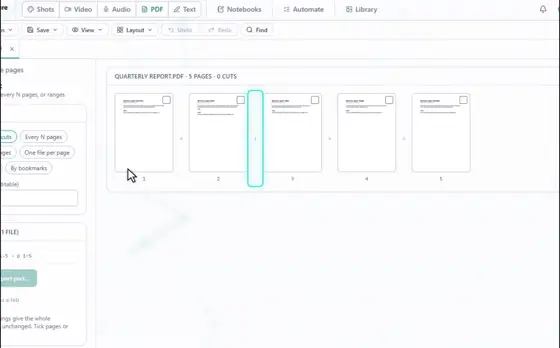
Every page becomes a tile.
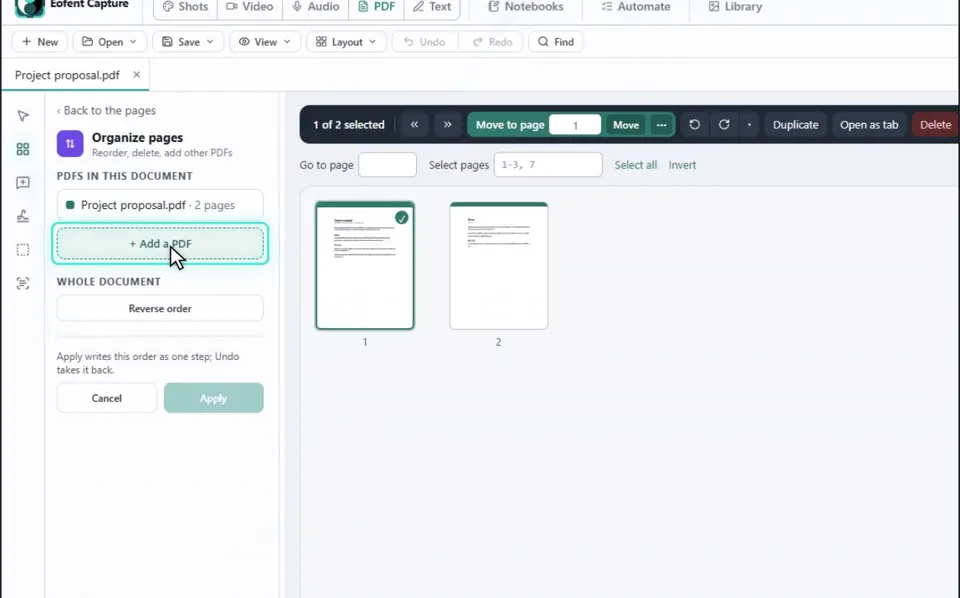
3Press Add a PDF
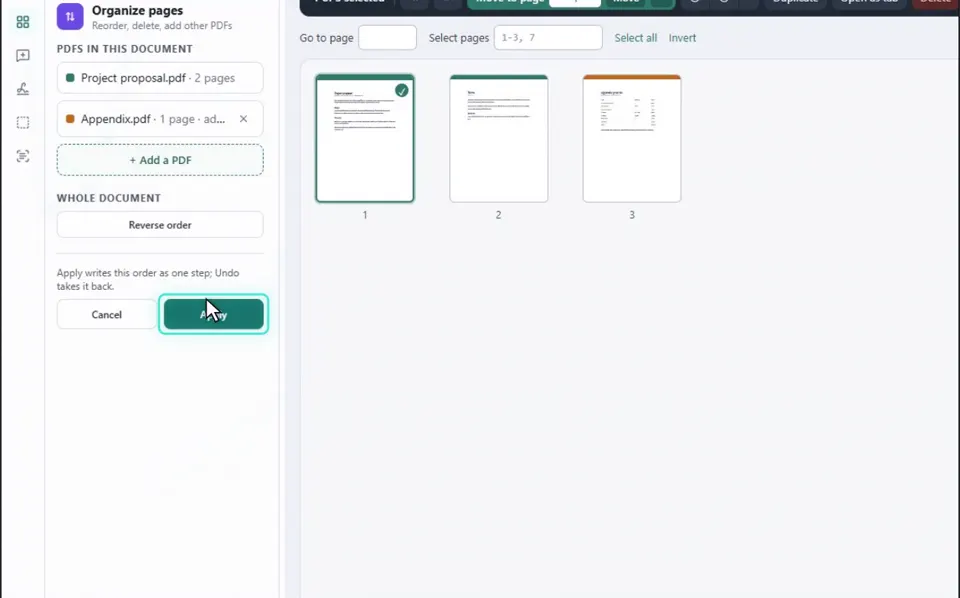
Pick the second file. Its pages join the end in their own colour, and you can add as many files as you need.
4Put the pages in order
Drag the tiles until the pages are in the order you want.
BUONO A SAPERSI
In the same view you can rotate, duplicate or delete pages, and move them earlier or later.
5Press Apply
The whole rearrangement is one step, so you can undo it.
6Open Save, then Export
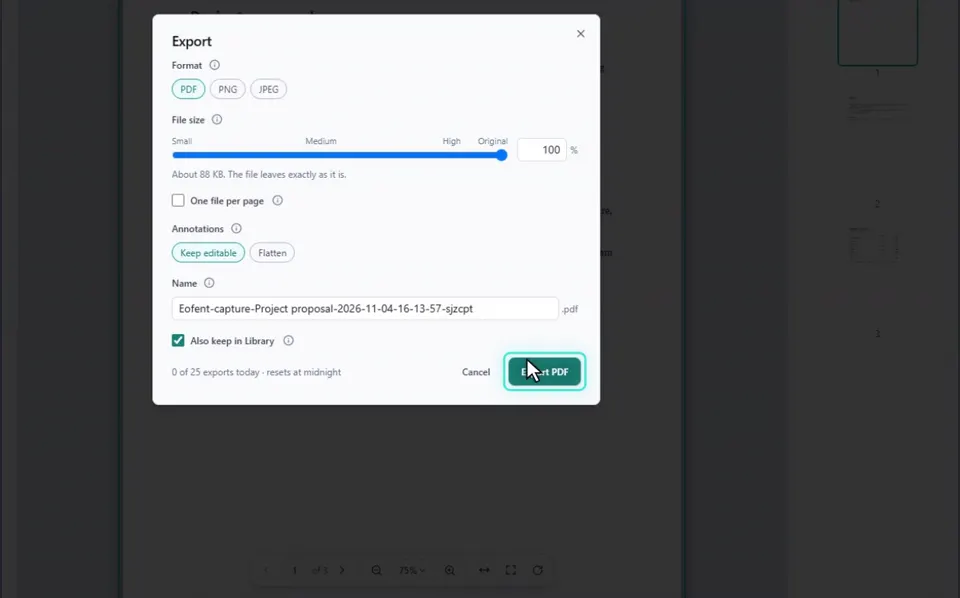
Nothing is written to your disk until you save or export.
BUONO A SAPERSI
Export counts as an editor export. Applying tools and saving to the Library are never counted.
7Press Export PDF
The merged file lands in your Downloads folder.
Installa Eofent Capture
Eofent Capture è gratuito per iniziare; il piano gratuito ha limiti giornalieri. VEDI I PIANI →