How to compress a PDF in Chrome
Open the PDF in the PDF editor of Eofent Capture, choose Compress PDF, pick a level and press Preview. In the video a two page scan goes from 3.9 MB to 174 KB.
7 PASSAGGI · CHROME ED EDGE
PER ORA QUESTA GUIDA È IN INGLESE
1Open the PDF
Open the PDF tab, press Open a PDF and pick the file.
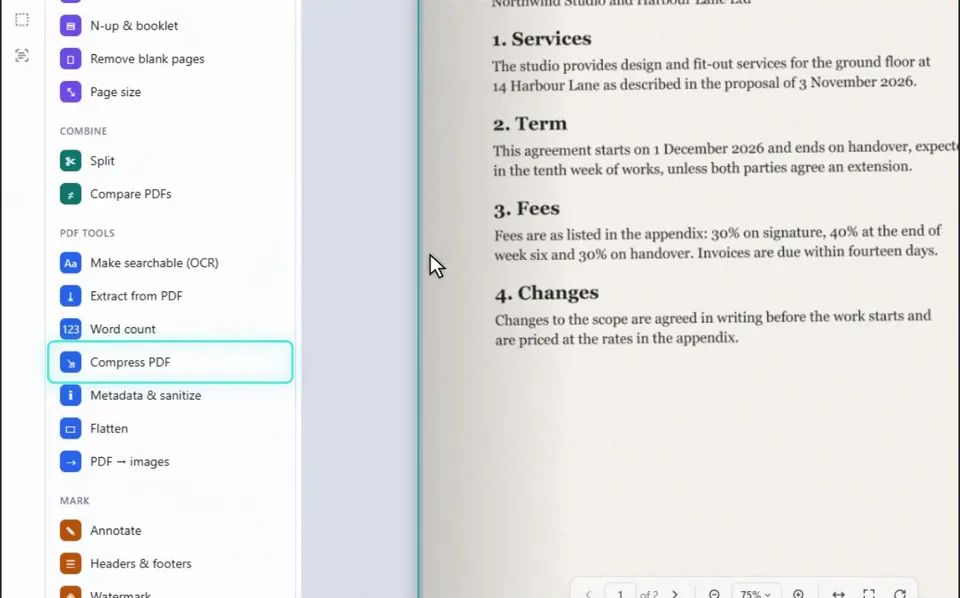
2Choose Compress PDF
You will find it under PDF tools in the list on the left.
3Pick a level
Small shrinks scans the most, and Best quality keeps more detail. You can also set the resolution for scanned pages in dpi.
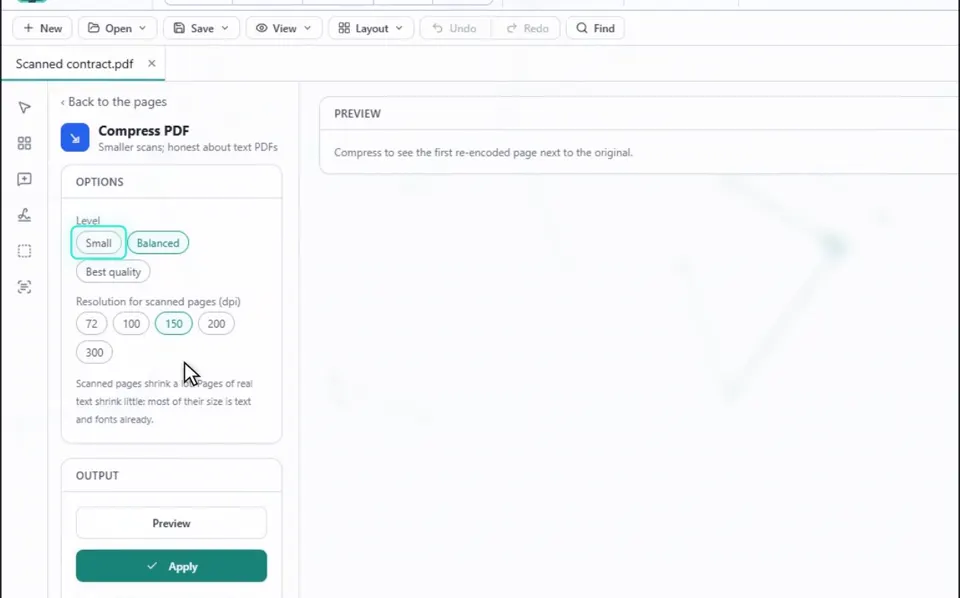
4Press Preview
The panel shows the size before and after, with a preview of the first page next to the original.
BUONO A SAPERSI
Scanned pages shrink a lot. Pages of real text shrink little, because most of their size is text and fonts already.
5Press Apply
This keeps the smaller version as a step you can undo.
BUONO A SAPERSI
The new file keeps every page and its text, but not bookmarks or form fields.
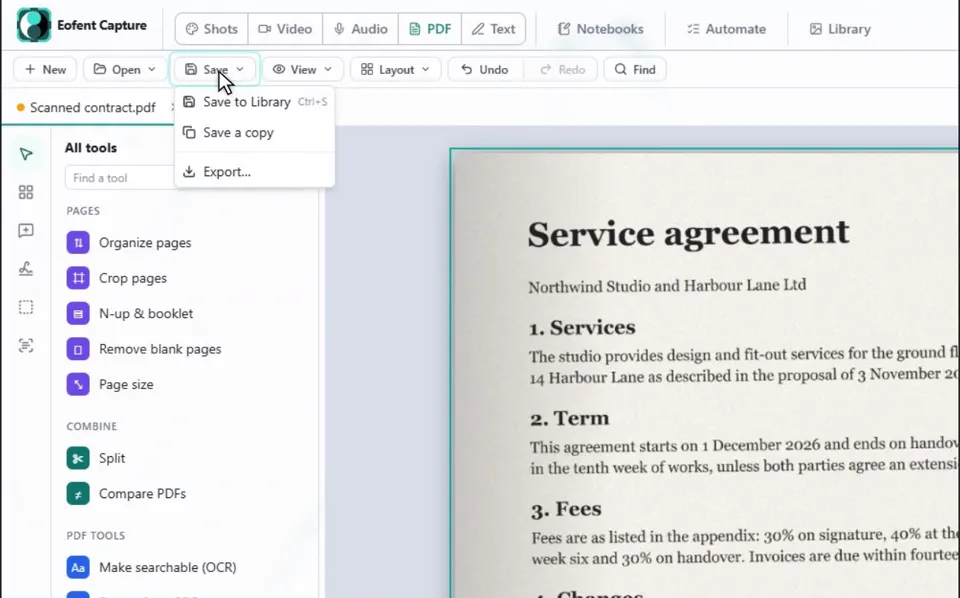
6Open Save, then Export
Nothing is written to your disk until you save or export.
7Press Export PDF
The smaller file lands in your Downloads folder.
Installa Eofent Capture
Eofent Capture è gratuito per iniziare; il piano gratuito ha limiti giornalieri. VEDI I PIANI →