How to screenshot one post, card or table in Chrome
Open Eofent Capture, press Element and point at the post, card, table or chart you want. It is captured to its edges with no dragging, and your captures stay on your computer.
9 PASOS · CHROME Y EDGE
DE MOMENTO, ESTA GUÍA ESTÁ EN INGLÉS
1Open Eofent Capture
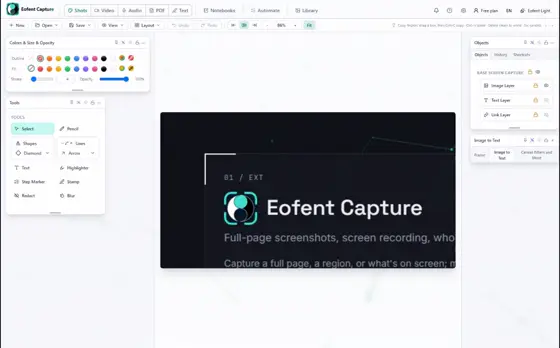
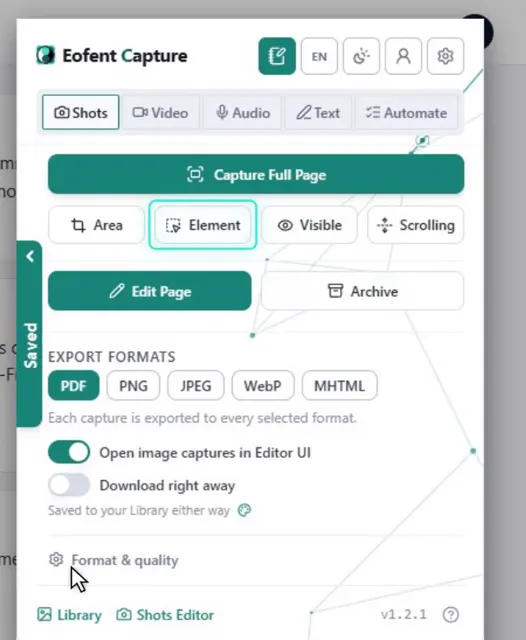
Press its icon in the toolbar. The popup opens on Shots.
2Press Element
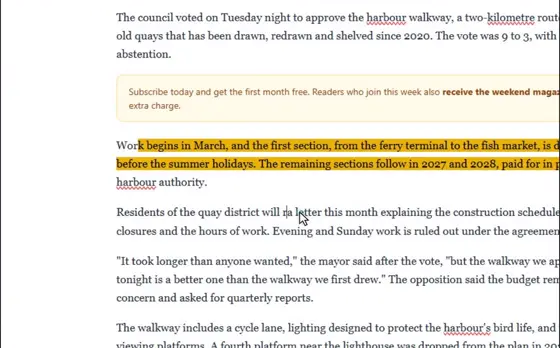
The pointer now picks out parts of the page.
3Point at the thing you want
It gets a box and a size label, with the element's name.
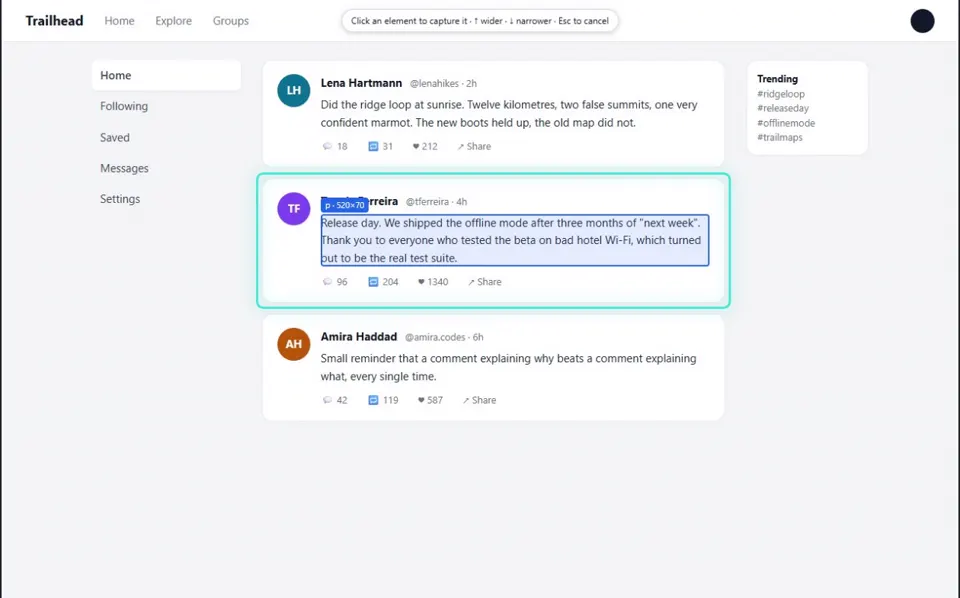
4Widen it with the Up arrow
Up widens to the whole card, and Down narrows again. Escape cancels.
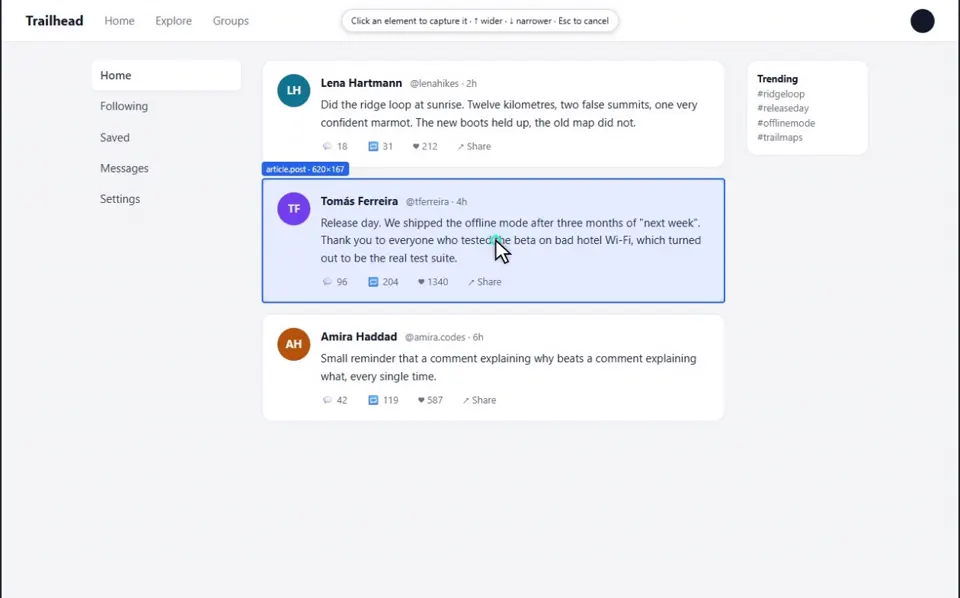
5Click to take it
Nothing under the pointer fires, so a link or a button under it stays unclicked.
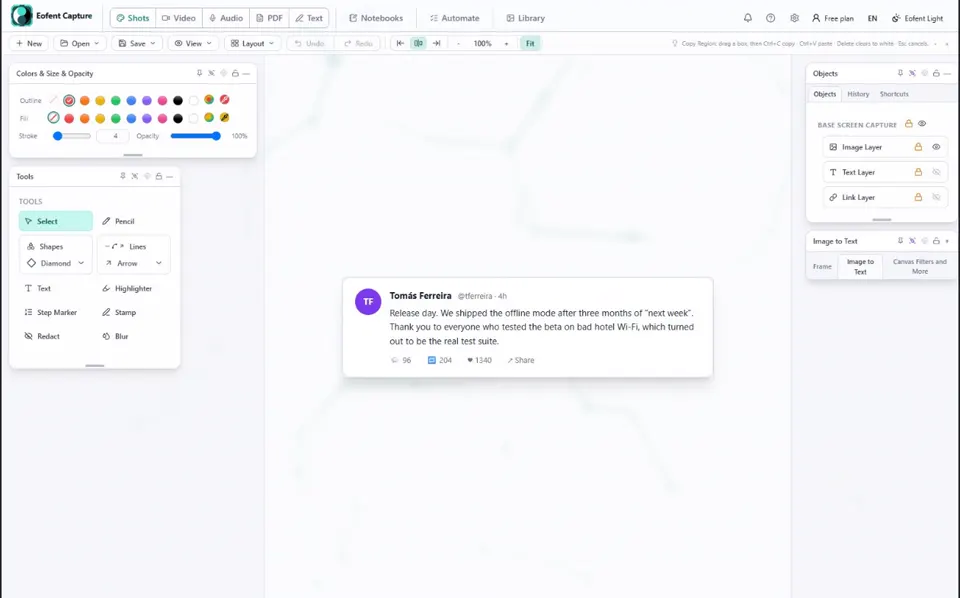
6Mark it up in the Shots editor
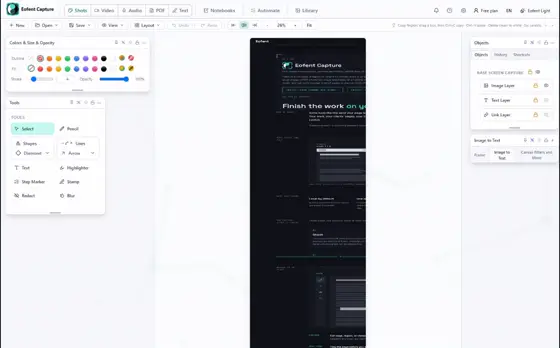
The card opens in the Shots editor on its own. Add arrows, text, blur or a crop if you like.
7Open Save, then Export image / PDF
The export panel opens over the editor.
8Tick the formats you want
PDF is ticked already. Tick PNG, and JPEG or WebP too if you like.
9Press Export
The files land in your Downloads folder.
Instalar Eofent Capture
Eofent Capture es gratis para empezar; el plan gratuito tiene límites diarios. VER PLANES →