How to screenshot part of a page in Chrome
Open Eofent Capture, press Area and drag a box over the part you want. Your captures stay on your computer.
8 ADIM · CHROME VE EDGE
BU REHBER ŞİMDİLİK İNGİLİZCE
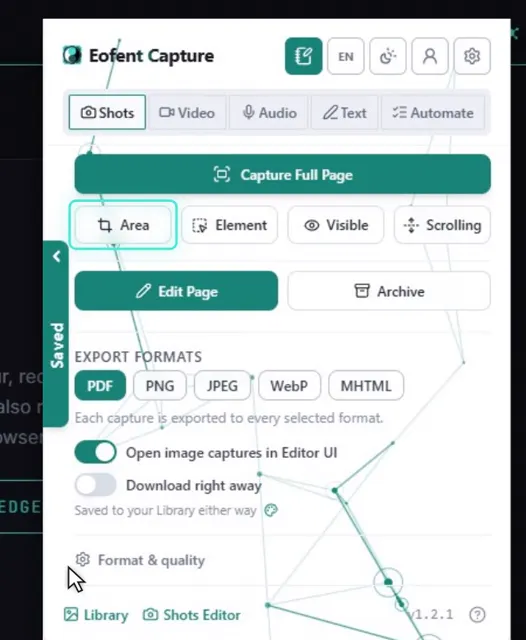
1Open Eofent Capture
Press its icon in the toolbar. The popup opens on Shots.
2Press Area
The page is ready for you to draw on.
3Drag a box over the part you want
The size shows as you go, and you can adjust the box with its handles.
BİLMEKTE FAYDA VAR
The width and height boxes can be typed into, or pick a preset for an exact size.
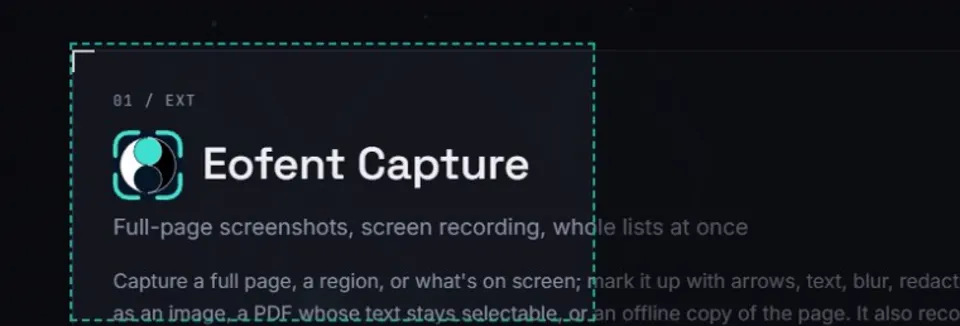
4Press Capture
Enter or the Capture button confirms, and Esc cancels.
5Mark it up in the Shots editor
The shot opens in the Shots editor. Add arrows, text, blur or a crop if you like.
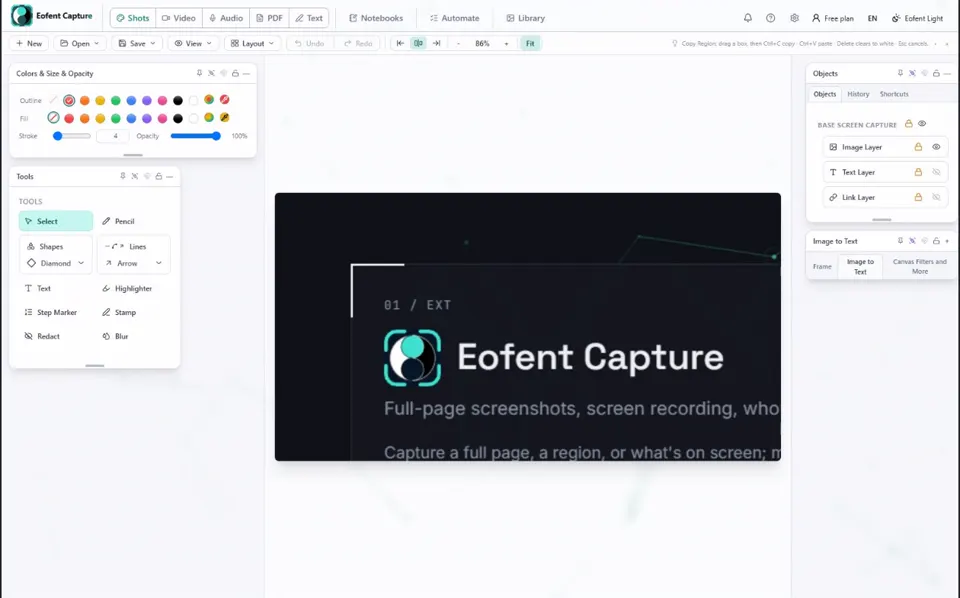
6Open Save, then Export image / PDF
The export panel opens over the editor.
7Tick the formats you want
PDF is ticked already. Tick PNG, and JPEG or WebP too if you like.
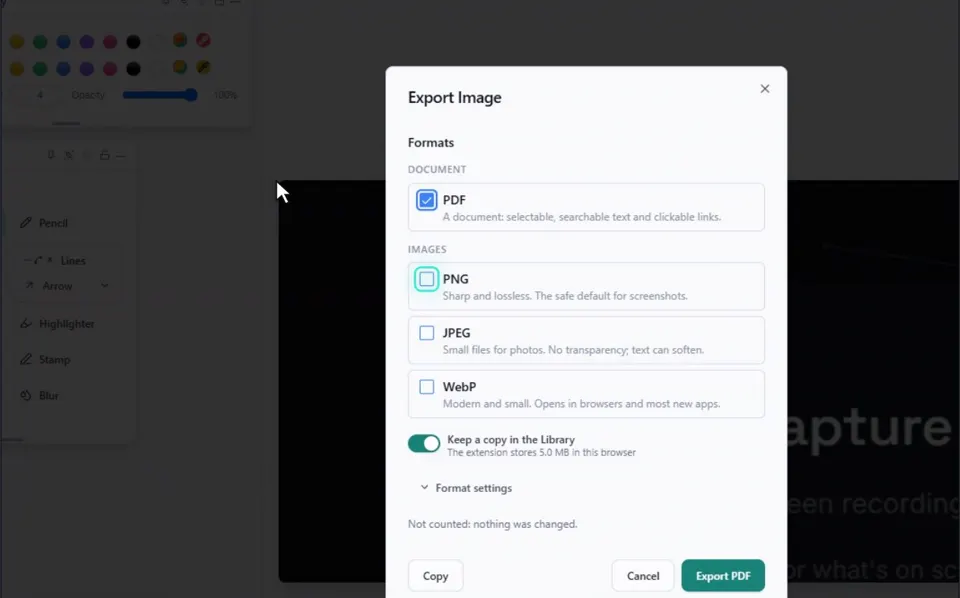
8Press Export
The files land in your Downloads folder.
Eofent Capture'ı yükle
Eofent Capture'a ücretsiz başlayabilirsin; ücretsiz planın günlük kullanım hakları vardır. PLANLARI GÖR →